| Commands | CAPCAD_SIGN_SELECT (signs only) · CAPCAD_SIGN_SELECT_POST (supports only) · CAPCAD_SIGN_SELECT_ALL (sign with its support) · CAPCAD_SIGN_SELECT_RESCALE (rescale) |
| Shortcut | none. SE is taken by CAPCAD_XDATA_SELECTION, which is a different tool |
| Ribbon | CAPCAD_SIGN_SELECT_ALL: CapCad tab › Sinalização Vertical panel › Vertical button › Seleciona Placas/Suportes. The other three are reached from the Vertical Tools form or by typing the name |
| Category | Vertical |
| Form | none of their own. All four are driven from the Tools tab of CorrigeForm ("Vertical Tools") |
| Hosts | the three selection commands: AutoCAD, BricsCAD, GstarCAD, ZWCAD, ARES Commander. CAPCAD_SIGN_SELECT_RESCALE: AutoCAD (in ARES Commander it reports that it is not available) |
| Related | CAPCAD_SIGNS_FIX opens the form; CAPCAD_SIGN_MANAGE selects from a list of signs |
A traffic sign is not a block: it is an assembly. A sign, a support, and sometimes a leader line. A CAD selection window takes whatever it crosses; these commands take exactly the part the next operation needs.
- Three ready-made cuts. Signs only, supports only, or a sign together with its own support, out of any selection you make.
- The pairing is geometric, not nearest-neighbour. The support is found from the sign's seating point, not from whatever happens to be closest.
- The result becomes the active selection. When the command ends, the next
MOVE,ERASEor layer change already acts on the cut. - Rescale without redrawing. Signs inserted at the wrong scale come back to the project scale, pivoting about the support point, so the seating is not lost.
- It is the preparation step. The natural thing to run before changing a sign's action, changing a layer, or erasing a whole assembly.
What it does
In CapCad a sign placed in the drawing is a set of entities: the sign block, the support block it seats on, and in some arrangements a leader line joining the two. Attributes decide which is which: a block is a sign when it carries SIGN_CODE (or SENAL_COD, CODIGOPLACA, PLACA_COD, CODIGO) and a support when it carries POST_CODE or SUP_COD. The link between them is geometric: the support block has a seating point (the dynamic parameter "Position2 X/Y", turned by the block's rotation) and a sign belongs to it when its insertion point coincides with that seating point to within 1 drawing unit.
Hence the question these commands answer: the sign, the support, or both? The answer changes what the next operation does to the drawing.
| You select | What moving does | What erasing does | What a layer change does |
|---|---|---|---|
| The sign only | The sign leaves the seating; the support stays. The geographic coordinates already written into the sign are preserved. | An orphan support is left in the drawing. | The sign's layer changes, the support's does not — and the layer is how the action (insert / keep / remove) is read. |
| The support only | The support slides out from under the sign. This is why moving a support forces the chainage and the coordinates to be recomputed with CAPCAD_SIGNS_FIX. |
The sign is left with no support and becomes an orphan in the reports. | Only the support changes. |
| Both | The assembly travels whole, the seating holds. This is the cut you want when repositioning a sign. | The whole assembly goes. | Sign and support stay consistent. |
The three selection commands draw nothing and change no entity: they only replace the active selection with the cut you asked for. The fourth, CAPCAD_SIGN_SELECT_RESCALE, uses the same pairing but to scale the assembly.
Workflow
- Run the command (or click Select (12) on the Tools tab of the Vertical Tools form, with the cut chosen in radio buttons 3, 9 or 11).
- Select in the drawing. A wide, careless window is fine: anything that does not qualify is discarded. A selection made before the command is also accepted.
- The command hands back the cut as the active selection and writes on the command line how many items survived (
N item(s) selected.) or that nothing matched (Nothing matched.). - Run the next operation —
MOVE,ERASE, a layer change, a sign action — on what is left selected.
The commands
CAPCAD_SIGN_SELECT — signs only
Out of your selection, every block that is a sign survives. Blocks with no attributes, lines, text, supports and everything else are discarded. Blocks named INFO and DEF_TERMINAL_IMP are never treated as signs.
A block whose name matches a fixed list of short codes — a letter, a hyphen and a number, at most 5 characters once the style suffix has been stripped — is taken into the selection even when it carries no sign attributes. On another country profile only the attributes decide.
CAPCAD_SIGN_SELECT_POST — supports only
Every block carrying POST_CODE or SUP_COD survives. Use it before changing the supports' layer, erasing them in bulk, or feeding them to the support-height calculation.
CAPCAD_SIGN_SELECT_ALL — the sign with its support
For every sign in the selection the command looks through model space for the support whose seating point coincides with the sign's insertion point, and returns both. A sign with no support is returned on its own; a support that was in the selection but whose sign was not is not returned — the starting point is always the sign.
This is the cut to use to move a sign without breaking the seating, or to erase a whole assembly.
CAPCAD_SIGN_SELECT_RESCALE — rescale signs already inserted
This is the command behind the Adjust scale... button (1) on the Tools tab. It brings signs that are already in the drawing to the scale set in the project — typically when an urban stretch (1:500) and a rural stretch (1:1000) meet in the same drawing, or when the scale was changed after insertion.
The target scale is the Placas.Escala preference, the same one behind the Scale 1: box of Insert Vertical; with nothing stored, 1000.
What happens:
- A dialog appears before the selection: "Signs that are not in the defined scale of 1:N will be changed to this scale. Change the scale in the Insert Vertical command, scale field. Select both the plate and its support. Entities that are not of these types will be ignored."
- You select in the drawing. Only the signs in the selection are considered.
- For each sign the support is found through the pairing ladder (seating point → the block geometry's fence → hop along a leader line → a wider fence → assembly). With no support, the sign is skipped.
- The assembly's current scale is read from the X scale factor of the support block, divided by 10, which is how CapCad stores "1:N". If it already equals the target exactly, the command line answers that it was already at the correct scale and nothing moves.
- Otherwise the sign and the support — plus the leader line and the second sign, when the support was reached through an assembly — are scaled by target scale ÷ current scale, about the support's insertion point. The command line logs the conversion.
Going from 1:500 to 1:1000 doubles the signs; from 1:1000 to 1:500 halves them. The support point does not move, so the sign's plan position stays where it was.
The form
The four commands live on the Tools tab of the Vertical Tools form, opened by CAPCAD_SIGNS_FIX (shortcut CV) or, straight onto that tab, by CAPCAD_SIGN_TOOLS (ribbon › Vertical Signing › Vertical Tools).
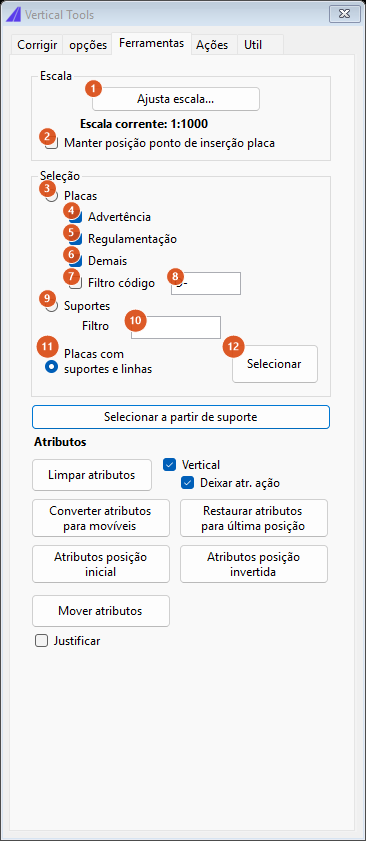
The "Tools" tab: the Scale and Selection frames. The controls below them belong to the attribute fixes and are covered on the Vertical Tools page.
Scale
| # | Control | What it does |
|---|---|---|
| 1 | Adjust scale... | Hides the form, runs CAPCAD_SIGN_SELECT_RESCALE (with the state of box 2) and shows the form again when it finishes. |
| 2 | Keep sign insertion point position | Scale about the sign's insertion point instead of the support's — the sign stays put and the support moves. In this version that only applies when the support was reached through an assembly; in the ordinary case of a sign seated directly on its support, ticking the box makes the command scale nothing at all and merely announce the conversion on the command line. Leave it clear. |
Check the target scale in the Insert Vertical command: the bold label between the two, "Current scale: 1:1000", is fixed text.
Selection
The three radio buttons choose which command the Select button will run.
| # | Control | What it does |
|---|---|---|
| 3 | Signs | Button 12 runs CAPCAD_SIGN_SELECT. |
| 4 | Warning | A category filter for the sign cut. Not available in this version: all three categories always go in. |
| 5 | Regulatory | Likewise. |
| 6 | Others | Likewise. |
| 7 | Code filter | A code filter for the sign cut. Not available in this version. |
| 8 | filter text | The code to filter on (default O-). Not available in this version. |
| 9 | Supports | Button 12 runs CAPCAD_SIGN_SELECT_POST. |
| 10 | Filter (support) | A support-code filter for that cut. Not available in this version: every support in the selection goes in. |
| 11 | Signs with supports and auxiliary lines | Selected by default. Button 12 runs CAPCAD_SIGN_SELECT_ALL. |
| 12 | Select | Runs the command of the radio button that is on. The form stays open; the selection is left active in the drawing. |
How the options combine
There are no figures on this page: the three cuts only exist against the entities of a drawing — which blocks carry which attributes and where the seating points are — and there is no way to reproduce them outside the CAD.
The scale conversion, though, is a simple ratio. The table below shows the factor applied to the assembly for a target scale of 1:1000, the default preference:
| Current scale of the support | Factor applied | Effect |
|---|---|---|
| 1:500 | 2 | Signs double in size |
| 1:1000 | — | Nothing changes; "already at the correct scale" |
| 1:2000 | 0.5 | Signs halve |
| 1:250 | 4 | Signs quadruple |
Remembered between sessions
Nothing is written to the preferences. The chosen cut (3, 9 or 11) and the Keep sign insertion point position box (2) stay as you left them for as long as the Vertical Tools form is alive in the CAD session; close the CAD and they return to the defaults — Signs with supports and auxiliary lines on, Keep position off.
The rescale target is not an option of this form: it is the Placas.Escala preference, written by Insert Vertical and kept between sessions.
Notes
- The leader line and the assembly's second sign are not included. In this version
CAPCAD_SIGN_SELECT_ALLreturns the sign and its support. For assemblies, finish the selection by hand. - The command-line replies are English in every language.
N item(s) selected.andNothing matched.appear like that everywhere. The rescale command's own conversion line is the other way round: it is written in Portuguese in every language. - The rescale compares the scale exactly. A support inserted at 1:999.99 is not treated as 1:1000 and is converted.
- A mirrored support flips the assembly. When the support is reached through an assembly and its X scale factor is negative (a mirrored block), the applied ratio is negative too and the assembly is mirrored along with the resize. In the ordinary case of a sign seated directly on its support the sign is discarded and only the size changes.
- "Select from support", the wide button just below the Selection frame, is not available in this version; the command line says so. To start from the support, use
CAPCAD_SIGN_SELECT_POSTand thenCAPCAD_SIGN_MANAGE, which knows how to go from a sign to its paired support. - Prepare the selection first if you prefer. All four commands accept a selection already made in the drawing; when one exists, the CAD offers it to the command instead of asking again.