| What it is | The set of national conventions CapCad applies: norms, layer names, library, ribbon and language |
| Command | CAPCAD_COUNTRY_STANDARDS |
| Ribbon | CapCad tab › CapCad panel › Sistema split button › CapCad Country Standards |
| Form | CapProfilesForm (modal) |
| Where it is stored | In the installation's preferences, per Windows user |
| Hosts | AutoCAD, BricsCAD, GstarCAD, ZWCAD, ARES Commander |
| Licence | Free — the command runs even with no active licence |
The norm is configuration, not code. The same Chevron assistant draws to one country's manual and then to another's: what changes is the active country profile, not the command and not the program.
- 27 countries and regions, each with its own presets, its own library and its own layer spelling.
- Immediate swap. The ribbon reloads on the spot, the messages change language and the assistants' presets already come from the new country. No CAD restart.
- Libraries on demand. Each country has its own sign and block package, downloaded from the server when it is missing.
- Drive side. The profile knows which side people drive on, and the commands that depend on it follow.
- Activation and download are separate things. Changing country downloads nothing; downloading a library is a button of its own, with control over what to sync.
- It is your preference, not your licence's. The profile applies to your Windows user on that installation; nothing in the licence changes with it.
What a country profile is
A country profile is a set of national conventions identified by a key (brazil, uk, peru, france…). Besides the countries proper there are generic profiles — Generic, Europe Generic, Latinoamérica general — and an Aero profile, for airport signing.
Each profile carries:
- a display name (Brasil, United Kingdom, Peru…);
- a two-letter code, shown in the corner of the status bar (BR, UK, PE);
- the drive side (left or right);
- the ribbon it uses.
The 27 profiles available:
| Region | Profiles |
|---|---|
| Generic | Generic, Europe Generic, Latinoamérica general |
| Special | Aero |
| Americas | Brasil, United States, Canada, Peru, Colombia, Ecuador, Venezuela, Bolivia, Argentina, Uruguay, Paraguay, Chile, Mexico, SIECA |
| Europe | United Kingdom, Spain, France, Portugal |
| Africa | Egypt, Uganda, Angola, Mozambique |
| Asia | Jordan |
The form has a Region combo whose values are All, Generic ones, Africa, Americas, Asia, Europe, Oceania, Spanish America and Portuguese Speaker, plus a text filter box that ignores accents and case (typing peru finds Peru).
Three profiles drive on the left: United Kingdom, Mozambique and Uganda.
What the profile swaps
Norm presets
The built-in presets of the horizontal-signing assistants are filtered by the profile: each preset declares which countries it belongs to, and the list shows only those of the active country (plus the generic ones).
This applies to the whole chevron family — 1 side, 2 flows, 3 flows, linear and area — with presets of their own for the United Kingdom (TSRGD), the United States (FHWA), Canada (Ontario), France (IISR), Spain, Portugal, Argentina, Chile, Colombia, Ecuador, Mexico and SIECA. For Bolivia, Peru, Uruguay and Venezuela the presets are listed but not available in this version (shown as in development).
The same happens in the Marking Strip compositor: the set folders on offer and the names of each category's markings change with the country, and the built-in library (used offline) has one folder per country.
The form also carries a link to the norms page of the CapCad website for the region of the selected country — for the countries that have such a page.
Layer names
The profile decides which language the signing layer names are written in: SINA_HOR_* / SINA_VERT_* in Brazil, ROAD_MARK_* / ROAD_SIGN_* in English, SENA_HOR_* / SENA_VERT_* in Spanish — with the colour codes and the action codes translated along with them. The details are in Layers and the layer catalogue.
The layer language has three possibilities, not 27: Portuguese (Brazil only), Spanish (Latin America) and English (all the rest — Spain, Portugal and France included).
Sign and block library
When the project does not set the official signs folder, CapCad resolves it from the profile: the signs-<country> package under the local library root — which is downloaded from the server when the folder is missing or empty.
The same holds for the block package dwg-<country>. That is why the form has a separate download section.
A few sign codes CapCad has to name by role — delineator, stop, give way, speed limit, kilometre post — also change with the profile.
Ribbon, menus and language
Changing profile reloads the ribbon. Five profiles have a ribbon of their own — Generic, Brasil, United Kingdom, Latinoamérica general and Aero; the rest use the generic ribbon, and the Spanish-American countries use the Latin America one.
Along with the ribbon, these change:
- the language of the messages and forms (Portuguese, Spanish or English, according to the country);
- the forms already open, which are re-translated on the spot;
- the command aliases, which switch to the matching language;
- the two-letter code in the status bar (the Generic profile shows none);
- the next CAD start, which already opens on the right ribbon.
Drive side
The profile states which side people drive on. The Alignment Manager displays that information, and it feeds the side handling when signs are inserted.
Units
The only unit adjustment tied to the profile: CapCad forces the drawing to metres, except in the United States profile when the drawing is already in feet or inches.
What does not change
- The licence. The profile is a local preference; no command changes availability with the country, and changing profile neither revalidates nor invalidates the licence.
- The layer grammar. The spelling changes — the family and the colour codes — not the structure of the name.
BRremains the code for branca (white), not for Brazil; the cadence is still mark × gap; the marking code is still free text. - Layers outside signing. Guardrails, barriers, items, GIS, sheet and annotation layers keep their names in any country.
- The styles. The project's style decides the presentation and is independent of the profile: changing country does not change the style, and vice versa.
- The project and the alignment. Nothing stored in
project.config, in the alignment or in the drawing is rewritten when you change profile — with one exception: the official signs folder set on the project is cleared, so the new country can resolve its own.
Changing profile
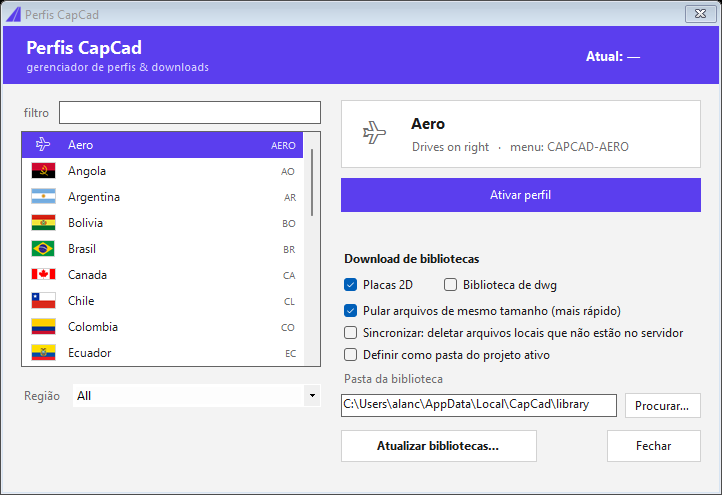
The form: the profile list with flag and code on the left, the selected profile's card with the drive side and the menu on the right, and the library download section below. (The screenshot is from a Portuguese session; the layout is identical in English.)
- Run
CAPCAD_COUNTRY_STANDARDS. The header shows Current: with the profile in force, already selected in the list. - Filter by Region or type in the filter box.
- Pick the country. The card on the right shows the drive side and which menu it uses.
- Click Activate profile — or double-click the row, which activates and closes the window without the confirmation message (the new ribbon is the confirmation).
What happens on activation, in this order: the previous profile's ribbon is unloaded and the new one loaded; the preference is written; the interface language is updated and the open forms re-translated; the country is registered with the server; the command aliases are swapped; the next start is set up to open on the new ribbon; the project's signs folder is cleared and the project reloaded; and the status bar is updated.
There is no need to restart the CAD.
Downloading the libraries
The lower block is independent of activation — activating a profile downloads nothing.
| Control | What it does |
|---|---|
| 2D signs | Downloads the selected country's sign package |
| Dwg library | Downloads the selected country's block package |
| Skip files already same size (faster) | Does not re-download what is already identical locally |
| Sync: delete local files not on the server | Leaves the local folder identical to the server's |
| Set as the active project's folder | Points the project folders at what was downloaded |
| Library folder | Where the packages are written |
| Update libraries… | Runs the download |
The download needs a selected profile, at least one of the two package boxes ticked, and a library folder filled in. A country whose package has not been published yet returns a package-unavailable warning.
Independently of that button, when a command needs a country's signs folder and it is missing or empty, CapCad fetches the package on its own.
Where the profile is stored
In the installation's preferences. The installer sets it on first install, choosing the country from the Windows region.
Practical consequences:
- It is per Windows user and per installation. Two users on the same machine have independent profiles.
- It is per CAD. Each installed host has its own program folder and therefore its own profile.
- When no profile is stored, or the stored one is not recognised, CapCad assumes Generic.
Notes
- The country is reported to the server. Every activation records the country in the CapCad account logs, and the country also travels with the licence-code request, so the e-mail arrives in the right language.
- Profiles with no values. For some countries the presets are listed but not available in this version; they are shown as in development.
- Spain, Portugal and France run in English. The Spanish texts serve Latin America, and the interface has no European-Portuguese or French edition in this version.
See also
- Layers and the layer catalogue — the name spelling that changes with the country.
- The CapCad project — the library folders the profile resolves by default.
- Styles — the presentation, which is a project decision and not a country one.
- The CapCad ecosystem — the overview.