| Commands | CAPCAD_POLYLINE_TOOLS (the form) · CAPCAD_SEGMENT · CAPCAD_SEGMENT_REMOVE · CAPCAD_SEGMENT_EXTRACT · CAPCAD_SEGMENT_IDENTIFY · CAPCAD_SPLIT · CAPCAD_SPLIT_2POINT · CAPCAD_LENGTHEN · CAPCAD_LENGTHEN_OPPOSITE · CAPCAD_POINT_AT_MEASURE · CAPCAD_POINT_AT_MEASURE_SPLIT · CAPCAD_VERTEX_ADD · CAPCAD_VERTEX_REMOVE · CAPCAD_VERTEX_CYCLE · CAPCAD_CURVE_AVERAGE · CAPCAD_CURVE_AVERAGE_MULTI |
| Shortcuts | Q (break at 1 point) · Q2 (break at 2 points) |
| Ribbon | CapCad tab › CAD Utilities panel › Geometry split button — every command on this page except CAPCAD_POLYLINE_TOOLS, which has no ribbon button (see Notes) |
| Category | CAD Utils: Segment |
| Form | PolylineToolsForm (Polyline Tools), modal: while it is open the drawing is blocked, except during the selections each button asks for. The other commands have no form — they ask for everything on the command line |
| Hosts | AutoCAD, BricsCAD, GstarCAD, ZWCAD and ARES Commander, except CAPCAD_SEGMENT_REMOVE, CAPCAD_SEGMENT_EXTRACT and CAPCAD_SEGMENT_IDENTIFY, which are AutoCAD only (on ARES Commander they register but report themselves as coming soon) |
| Also opened by | none |
A stretch of polyline becomes an entity of its own in two clicks, and the arc geometry comes out right. The CAD's own commands break and trim at intersections; here the cut is made by projecting your points perpendicularly onto the curve, so a stretch in the middle of an arc is extracted as the correct arc.
- Extract without destroying. Extract Segment hands back the stretch as a new entity and leaves the original intact — the opposite of the native BREAK.
- Cut by projection, not by intersection. Click anywhere near the curve: the point is dropped perpendicularly onto it, and the cut lands exactly there.
- Arcs preserved. The pieces come out with the bulge recomputed; a curved stretch stays curved instead of collapsing to a chord.
- Lengthen to a total length. You type the final length the entity should have and choose which of the two ends stays anchored.
- Vertices under control. Insert a vertex at any point, remove the vertex nearest the click, and rotate the start vertex of a closed curve — three operations the CAD does not offer ready-made.
- The average curve between two paths. One or several intermediate curves between two polylines, useful for finding the centreline between two edges.
What it does
This page gathers CapCad's editing tools for polylines, lines and arcs: the ones that produce a new stretch, the ones that cut, the ones that change the length, the ones that touch vertices and the ones that measure.
They all work on the same internal curve representation, which carries the bulge (the curvature) of every segment. That is why a stretch taken from the middle of an arc comes out as an arc and not as a chain of chords.
Two ideas run through almost every command:
- The projected point. Where you click does not have to be on the curve. The point is dropped perpendicularly onto it, and the cut, the marker or the end of the stretch lands at the foot of that perpendicular.
- Extension along the curve. This is the distance travelled along the curve itself from its start — not the straight-line distance. The commands that ask for a value ask for that extension.
CAPCAD_POLYLINE_TOOLS draws nothing on its own: it opens a form with ten buttons, each running one of these commands. The standalone commands exist for people who prefer to type, and a few of them behave slightly differently from the equivalent button — the differences are recorded in Notes.
Workflow
The pattern is always the same:
- Run the command (or open
CAPCAD_POLYLINE_TOOLSand click the button). - Select the curve. Only lines, polylines, arcs and splines are accepted; anything else is refused —
Not a curve - pick a line / polyline / arc.from the shared curve picker,Must be a line, polyline or arc.from the average / segment / lengthen / point-at-measure commands. - Click the points or type the value the command asks for.
- The result is drawn. Some commands erase the original (see the table below); the rest leave it where it is.
| Command | Erases the original? |
|---|---|
CAPCAD_SEGMENT, CAPCAD_SEGMENT_EXTRACT, CAPCAD_SEGMENT_IDENTIFY, CAPCAD_POINT_AT_MEASURE |
no |
CAPCAD_SEGMENT_REMOVE, CAPCAD_SPLIT, CAPCAD_SPLIT_2POINT, CAPCAD_LENGTHEN, CAPCAD_LENGTHEN_OPPOSITE, CAPCAD_POINT_AT_MEASURE_SPLIT, CAPCAD_VERTEX_ADD, CAPCAD_VERTEX_REMOVE, CAPCAD_VERTEX_CYCLE |
yes — the entity is replaced by the result |
CAPCAD_CURVE_AVERAGE, CAPCAD_CURVE_AVERAGE_MULTI |
no — both input curves stay |
The figures on this page were produced by running the commands' own geometry engine on a sample path of length 119.756. Their labels are in Portuguese: inicio = start, fim = end, ponto 1 / 2 = point 1 / 2, curva 1 / 2 = curve 1 / 2, media 50% = average at 50 %, +25 no fim / no inicio = +25 at the end / at the start, polyline com largura 6 = polyline with width 6.
The commands
CAPCAD_SEGMENT — extract a stretch
Asks for the curve and two points, and draws the stretch between them as a new entity, leaving the original intact.
| Prompt | What to give |
|---|---|
Select the curve: |
the curve the stretch comes from |
First point: |
one end of the stretch |
Second point: |
the other end |
Both points are projected onto the curve; the order you click them does not matter. If the stretch cannot be determined, the command line answers Could not define the segment. A successful run reports Segment extracted.
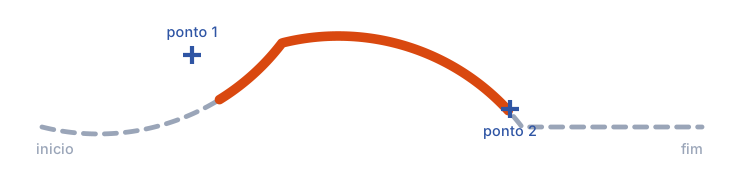
Original curve dashed; the extracted stretch (orange) between the feet of the two clicked points' perpendiculars. Here, 55.445 units out of a 119.756 curve.
CAPCAD_SEGMENT_REMOVE — delete a stretch
The inverse: it asks for the curve and two points and keeps what lies outside the stretch between them, erasing the original entity. The result is two curves (or a single one, when one of the points falls on an end). The command line closes with N piece(s) kept.
A closed curve is refused — the message explains that there is no way to tell which half you want, and points you at Break (2 points) to remove the unwanted piece yourself.
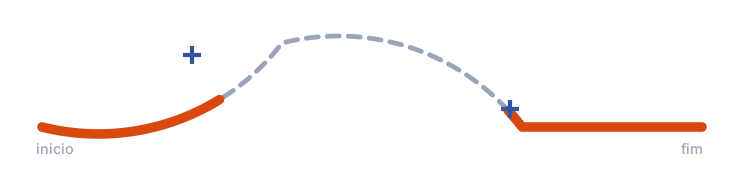
The same two points as the previous example: the two end stretches survive (30.744 and 33.567) and the middle disappears along with the original entity.
CAPCAD_SEGMENT_EXTRACT — extract the clicked sub-element
There are no points here: you click on the curve, near the segment you want, and the command draws a copy of that single segment (from vertex n to vertex n+1, with its arc) on top of it, in red (ACI 1). The original stays.
The command runs in a loop: after each extraction it asks for the next curve (Select the curve (Esc to finish):). Finish with Esc.
CAPCAD_SEGMENT_IDENTIFY — describe the clicked sub-element
Asks for the curve (Select the curve:) and then a point (Pick a point on the sub-element:), finds the segment nearest that point and describes it — both on the command line and in a dialog. Nothing is drawn and nothing is changed.
The description says first whether the segment is Line or Arc, then its Length (arc length, when it is an arc). For an arc it adds the tangent angle at the end of the segment (arcFinalAngle), the radius (arcRadius), the centre (arcCenterPoint) and the internal angle (arcInternalAngle) — the angles in radians, everything to three decimals.
CAPCAD_SPLIT (Q) and CAPCAD_SPLIT_2POINT (Q2) — break
CAPCAD_SPLIT asks for one point and cuts the curve in two. CAPCAD_SPLIT_2POINT asks for two points and cuts it in three. In both cases the original entity is erased and replaced by the pieces, and the command line reports Broken into N pieces.
Rules worth knowing:
- A closed curve cannot be broken at a single point.
CAPCAD_SPLITsays so and stops; useCAPCAD_SPLIT_2POINT, which returns the two complementary arcs of the closed curve. - Two coincident points are refused (
Same point). - If the points do not project inside the curve nothing happens, and the command line says so.
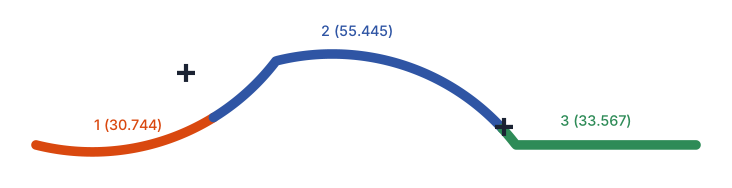
The three pieces with their lengths, and the original entity erased. Note that the middle piece is the same stretch CAPCAD_SEGMENT would have extracted.
CAPCAD_LENGTHEN and CAPCAD_LENGTHEN_OPPOSITE — lengthen to a value
They ask for the curve clicking near the end that should stay put (Select curve (click near the anchor end):) and then for the new total length (New total length, offering the current length as the default). The difference is applied at the other end, extending the last segment along its direction — or, if that segment is an arc, continuing the arc.
CAPCAD_LENGTHEN_OPPOSITE does the same with the ends swapped: the end nearest your click is the one that moves.
A value smaller than the current length shortens the curve. The operation fails (Could not lengthen (closed curve, or arc > full circle).) on a closed curve, and when the final arc would have to go past a full circle to reach the length asked for.

The same curve (119.756) taken to 144.756 from each end. Extending from the end, the straight stretch stays straight; extending from the start, the initial arc keeps curving.
CAPCAD_POINT_AT_MEASURE — mark a point at a distance
Asks for the curve and an extension along it from the start (Extension along curve from start (0..L), with half the length as the default) and puts a POINT entity there. The curve itself is not touched, and the command line reports Point marked at X along the curve.
The value must be strictly inside the curve: 0 and the total length are refused with Value must be inside the curve.
The point goes on the layer
AUX_NON_PLOTABLE, independent of the style and of the country profile.
CAPCAD_POINT_AT_MEASURE_SPLIT — mark and break
The same prompt, but as well as the marker the curve is broken at that point into two pieces and the original is erased. It answers Split at the point.
Its marker does not go on the same layer as the one above: this command drops the point on the current layer.
CAPCAD_VERTEX_ADD, CAPCAD_VERTEX_REMOVE, CAPCAD_VERTEX_CYCLE — vertices
| Command | What it does |
|---|---|
CAPCAD_VERTEX_ADD |
Asks for the curve and a point (Point to add a vertex at...); inserts a vertex into the segment nearest that point. |
CAPCAD_VERTEX_REMOVE |
Asks for the curve and a point (Click near the vertex to remove...); removes the nearest vertex. |
CAPCAD_VERTEX_CYCLE |
Closed curves only: asks how many vertices the start point should move (Move the start by how many vertices:, default 1) and rotates the vertex ring. On an open curve it says so and stops. |
In all three the original entity is replaced by the result. Cycling vertices is how you fix where a closed curve begins — which matters for patterned linetypes and for hatches that follow the first vertex.
CAPCAD_CURVE_AVERAGE and CAPCAD_CURVE_AVERAGE_MULTI — average curve
They ask for exactly two curves in a single selection (Select exactly 2 curves:; any other count is refused) and draw the curve that runs between them.
CAPCAD_CURVE_AVERAGE asks:
| Prompt | Default | What it does |
|---|---|---|
Number of segments output |
100 | How many segments the average is tessellated into. More segments, smoother line and more vertices. |
Percentage from 1st line |
50 | Where the average sits: 0 hugs the first curve, 100 the second, 50 splits the difference. Values above 100 are clamped to 100. |
Nearest-endpoint pairing? (No = invert sides) |
Yes | How the two curves are paired. With Yes, the second is walked in the direction that brings the endpoints together; with No, the opposite way. This is the setting to change when the average comes out crossed. |
CAPCAD_CURVE_AVERAGE_MULTI asks only How many divisions (default 3, minimum 2) and draws the intermediate curves that split the gap into equal parts — 4 divisions give 3 curves, at 25 %, 50 % and 75 %.
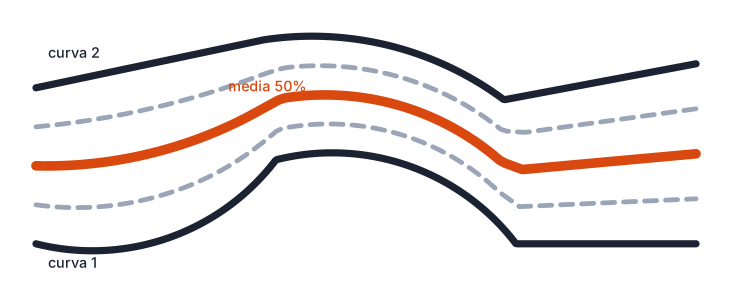
The two input curves in black; the 50 % average in orange; dashed, the three curves CAPCAD_CURVE_AVERAGE_MULTI produces with 4 divisions.
The form
CAPCAD_POLYLINE_TOOLS opens a list of buttons. Each does the same as the matching command and writes progress into the status label in the footer (Pick a tool., then the tool's name followed by an ellipsis while it runs and by — done. when it finishes, or — error: with the message when something fails). The form is modal, but it hides itself during each selection.
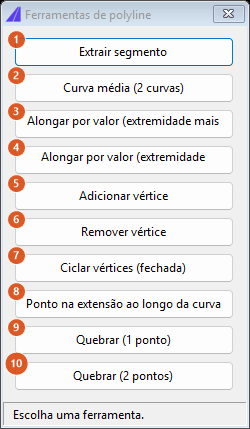
The ten buttons. This capture is of a Portuguese session — the numbering is the same in both editions, and the table below gives the English captions. The two Lengthen captions are clipped in the capture because the Portuguese strings overflow the button; the English ones are shorter.
| # | Control | What it does |
|---|---|---|
| 1 | Extract Segment | Asks for the curve (Select curve to extract a segment from) and two points (Point 1..., Point 2...). On an open curve it draws the stretch between them and keeps the original. On a closed curve it draws both complementary arcs so you can pick which one to keep. |
| 2 | Average Curve (2 curves) | Asks for two curves, the number of segments (default 100) and the percentage from the first (default 50). Unlike CAPCAD_CURVE_AVERAGE, it does not ask about the pairing: it always uses nearest endpoints. |
| 3 | Lengthen by Value (closest end) | Asks for the curve and the new total length (default: the current one) and extends the curve's last end. |
| 4 | Lengthen by Value (opposite end) | The same at the first end. |
| 5 | Add Vertex | Asks for the curve and the point (Point to add a vertex at...); inserts the vertex in the nearest segment and replaces the entity. |
| 6 | Remove Vertex | Asks for the curve and the point (Click near the vertex to remove...); removes the nearest vertex. |
| 7 | Cycle Vertices (closed) | Asks for the curve and how many vertices to move by. Refuses open curves. |
| 8 | Point at Extension Along Curve | Asks for the curve and the extension (Extension (distance) along the curve:, default 0), marks the point and reports the extension asked for together with the curve's total length. Values outside the curve are clamped to the ends instead of refused. |
| 9 | Break (1 point) | The same as CAPCAD_SPLIT. |
| 10 | Break (2 points) | The same as CAPCAD_SPLIT_2POINT. |
Remembered between sessions
Nothing. None of these commands writes preferences: the defaults (100 segments, 50 %, 3 divisions, 1 vertex) are fixed, and the length suggested by Lengthen is always the current length of the curve you picked.
Notes
- The Lengthen button and the Lengthen command do not choose the anchored end the same way.
CAPCAD_LENGTHENmeasures which end is nearer the point you clicked and anchors that one; buttons 3 and 4 always work the curve's last and first ends, wherever you clicked. If the curve was drawn in the opposite direction to the one you assume, use the other button. CAPCAD_SEGMENTdoes not have the closed-curve handling that button 1 has. The button draws both complementary arcs; the typed command tries to extract a single stretch and may answerCould not define the segment.- The two extension commands do not put their marker on the same layer.
CAPCAD_POINT_AT_MEASUREusesAUX_NON_PLOTABLE;CAPCAD_POINT_AT_MEASURE_SPLITdraws its marker on the current layer. - The two Lengthen failure messages differ. The commands say
Could not lengthen (closed curve, or arc > full circle).; buttons 3 and 4 sayCould not lengthen (closed curve, or value out of range). - Splines go in, polylines come out. The selection accepts splines; the result is always a polyline with arcs, because that is how CapCad's geometry represents curves.
CAPCAD_POLYLINE_TOOLShas no ribbon button. The Polyline Utils button that sits in the same Geometry split button runsCAPCAD_CURVE_TOOLS, the curve-utilities form — a different tool. Type the command name, or reach the individual commands through their own buttons.CAPCAD_OFFSETand Offset Variable are not on this page. They live in the same ribbon group but have their own behaviour and their own documentation.