| Command | CAPCAD_REPORTS, Spreadsheet tools tab |
| Shortcut | RT |
| Ribbon | CapCad tab › Manage panel › Output group › Relatórios |
| Category | Manage: Tools |
| Form | GeneralReportsForm, Spreadsheet tools tab — modeless |
| Hosts | AutoCAD; on ZWCAD the Localizador frame and Eliminar pontos work, but the spreadsheet sync and Cap ATT-IN are not available |
| Related page | Reports — the other nine tabs of the same form |
| Also opens | Cap Att-in..., on the Tools tab (the same import, with a pasted table instead of the live workbook) |
The quantities spreadsheet stops being a dead end. Once generated, it stays connected to the drawing, in both directions.
- From the spreadsheet to the drawing. Click a row in Excel and the CAD zooms to the matching entity. Finding the sign of row 437 in the drawing stops being a treasure hunt.
- From the drawing to the spreadsheet, with no typing. Each entity's identifier is already written into the report; that is what ties the two ends together.
- And back to the drawing. What the team corrected in the spreadsheet — codes, sheeting, materials, layers — is written back into the blocks in one pass.
- Coordinates work too. A cell holding X and Y, or latitude and longitude, takes the CAD to the point even with no entity at all.
- Armed automatically. Just tick Include locator when generating; the workbooks come out ready.
What it does
The Spreadsheet tools tab has two halves, and both are about the same idea: the spreadsheet and the drawing are the same information seen from two places.
The Locator is a small macro installed inside the workbook. When you click a cell, it scans the whole row looking for a drawing entity identifier; finding one, it tells the CAD, which brings the entity to the screen. Finding no entity, it tries to read the cell as a coordinate — a coordinate can sit whole in one cell or be split between a cell and its right-hand neighbour, and the system recognises both the X/Y form and latitude/longitude (in that case the project needs a coordinate system defined).
The zoom needs the CAD's VBA support. On a CAD without it, the cell click still brings the CAD window to the front, but the view does not move.
The sync is the reverse path: it reads the workbook open in Excel and rewrites the drawing from it. Each row is matched to an entity through the identifier, and the remaining columns become block attributes, dynamic properties, text content, layer or paint material.
Because both halves depend on Excel, two conditions apply: Excel must be installed, and only one workbook should be open at a time — with several open, the command has no way to know which one you mean. A warning confirms this before every sync, and can be silenced for the session.
Workflow
To arm a new spreadsheet:
- On the Main tab, tick Include locator (control 12 of the Reports page) before generating.
- Choose here, on the Spreadsheet tools tab, whether the trigger is a single click (2) or a double click (3).
- Generate. Every workbook written comes out armed. An
.xlsxfile is rewritten as.xlsm— macros cannot live in an.xlsx— and the status bar reports the swap.
To arm a spreadsheet that already exists:
- Open in Excel only the workbook you want to arm.
- Choose single click (2) or double click (3).
- Click Habilitar localizador em planilha existente... (1).
- The first time, Excel will probably refuse: Trust access to the VBA project object model has to be turned on. The command shows the steps — File › Options › Trust Center › Trust Center Settings › Macro Settings. Restart Excel and try again.
- Save the workbook as
.xlsmso the macro survives being closed.
To use it:
- Keep the drawing open in the CAD and the workbook open in Excel.
- Click (or double-click) a cell in the row you want to find.
- The CAD takes the focus and shows the entity.
To bring the spreadsheet back into the drawing:
- Open only the reviewed workbook.
- Click Horizontal (11) or Vertical e defensa (14), according to the family.
- Confirm the warning about keeping a single workbook open.
- The entities are rewritten with what the spreadsheet holds.
The form
The screenshot is of a Portuguese session; the numbering is the same one this page uses. Controls whose caption is Portuguese in every language are quoted in Portuguese and marked (Portuguese only).
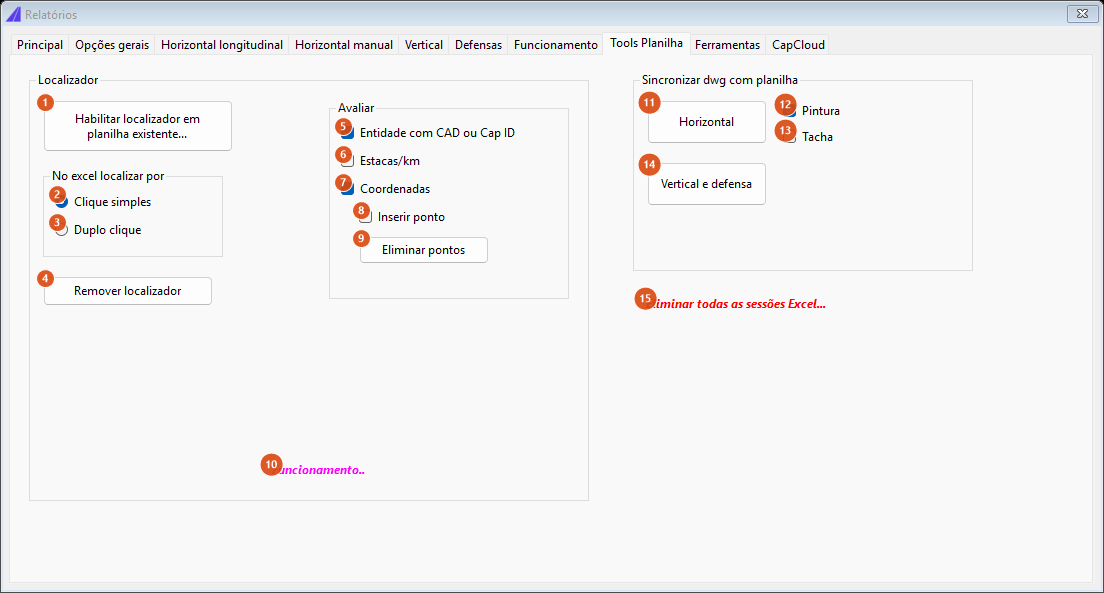
The Spreadsheet tools tab: the Locator on the left, what to evaluate in the middle, the sync on the right.
Locator
| # | Control | What it does |
|---|---|---|
| 1 | Habilitar localizador em planilha existente... (Portuguese only: "enable the locator in an existing spreadsheet") | Installs the macro in the first sheet of the workbook open in Excel. It needs Trust access to the VBA project object model; without it, the command shows the error message and then the steps to grant the access. |
| 2 | Clique simples (Portuguese only: "single click") | The macro fires when the cell is selected. This is the default. |
| 3 | Duplo clique (Portuguese only: "double click") | The macro fires only on a double click. Useful while the spreadsheet is still being edited a lot. |
| 4 | Remover localizador (Portuguese only: "remove the locator") | Wipes the code from the open workbook, disarming it. |
The two radio buttons (2, 3) also command the Include locator box on the Main tab: it is the same choice for the workbooks armed automatically when generating.
Evaluate
These boxes describe what the macro looks for in a clicked cell: an entity identified by CAD ID or Cap ID, a station/km, a coordinate — and, optionally, dropping a marker point at the place it found.
| # | Control | What it does |
|---|---|---|
| 5 | Entity with a CAD or Cap ID | On by default. |
| 6 | Stations/km | Off by default. |
| 7 | Coordinates | On by default. |
| 8 | Insert point | Off by default. |
| 9 | Eliminar pontos (Portuguese only: "delete points") | Deletes from the drawing every entity on the layer CAPCAD_LOCALIZATOR_POINT, that is, the marker points the locator left behind, and reports how many were removed. It is the only one of these controls that acts immediately. |
| 10 | How it works.. | Opens the full explanation of the locator, followed by the steps to grant access to the VBA object model in Excel. |
In this version the locator always looks for an entity and a coordinate. Boxes 5 to 8 are saved with the form; not used by this version.
Sync dwg with spreadsheet
| # | Control | What it does |
|---|---|---|
| 11 | Horizontal | Looks, among the open workbooks, for the one that contains the pintura_material marker and uses it from there down. On the matched entities it rewrites the paint material (which in CapCad is part of the layer grammar, so the layer is rebuilt) and the blocks' dynamic properties. |
| 12 | Painting | Saved with the form; not used by this version. |
| 13 | Stud | The same. |
| 14 | Vertical e defensa (Portuguese only: "vertical and guardrail") | Reads the whole active workbook and rewrites the attributes of the matched blocks: codes, sheeting, substrates, dimensions, everything that is in a column. |
| 15 | Kill every Excel session... | Force-quits every Excel process. It asks for confirmation, warning that unsaved workbooks will be lost, and reports whether it found any session. It is the emergency exit when Excel gets stuck in the background and stalls the generation. |
How rows are matched to entities
The link between spreadsheet and drawing is an identifier column. Three headers are accepted, searched in this order: ObjectID, HANDLE and cad.id. CapCad's reports already emit that column (placa.bloco.cad.id, cad.id), so a workbook generated by the command itself is ready to come back.
The header does not have to be on the first row: the locator macro looks for the "CAD ID" header in the first twenty rows, and the import looks for the identifier column along the start of the table. That is what makes the decorated headers of the templates usable.
What each remaining column does depends on what is ticked:
| Column | Effect |
|---|---|
| The name of a block attribute | Writes the attribute. |
| The name of a dynamic property | Writes the property; when it has a list of allowed values, the value has to be in the list. |
TextContent |
Replaces the content of texts and mtexts. |
Layer |
Changes the entity's layer, creating it through CapCad's layer catalogue when it is one of the program's layers. |
pintura_material |
Changes the paint material by rebuilding the layer name through the marking grammar. |
Cap ATT-IN
The Cap Att-in... button on the Tools tab does the same import with a different input: instead of reading the live workbook, you paste a table into the window.
- Paste with Ctrl+V straight into the grid, use Paste from the clipboard or Pegar do Excel ativo (Portuguese only: "take from the active Excel") — the last one scans every sheet of every open workbook looking for the identifier header; if more than one qualifies, it asks which to use; if none does, it falls back to the active sheet.
- The first row is the header: one
ObjectID,HANDLEorcad.idcolumn, and the rest carrying the attributes to fill in. - Tick what to write: Atributos de blocos ("block attributes", on by default), Propriedades dinâmicas de blocos ("block dynamic properties"), Conteúdo Text/MText (coluna TextContent) ("Text/MText content, TextContent column") and Layers (coluna Layer) ("layers, Layer column"), the last one with Validação layer CapCad ("CapCad layer validation") on by default. With nothing ticked, Aplicar (apply) says so and writes nothing.
- Limpar (clear) empties the grid.
- The last table used is reloaded the next time the window opens, together with the ticked options.
Remembered between sessions
The locator trigger (single or double click), the boxes of the Evaluate frame, the Painting and Stud boxes, and — in the Cap ATT-IN window — the four write options, the layer validation and the last pasted table.
Notes
- Every tool on this tab depends on a single Excel process. Workbooks opened in a second Excel process (a copy started with
/x, a window in Protected View, a Microsoft Store install living alongside the desktop one) are invisible to the command. If an open workbook "is not found", that is usually why. - Arming the locator turns an
.xlsxinto an.xlsm. The original.xlsxis deleted, and the new name appears on the status bar. - The boxes of the Evaluate frame and the Painting and Stud boxes are saved with the form; not used by this version.
- Syncing several drawings in one pass (from a column holding the
.dwgpath) is not available in this version: the target is always the active drawing. - Most of this tab's captions, and the warnings it raises, are in Portuguese in every language.