| Commands | CAPCAD_ALIGNMENT_PROPERTIES (editor), CAPCAD_ALIGNMENT_DATASET (DataTypes catalogue), CAPCAD_ALIGNMENT_SPEED_QUERY (speed query) |
| Shortcut | — |
| Ribbon | CapCad tab › Properties panel › Properties split button › Propriedades Eixo, DataTypes Eixo and Identifica Velocidade Diretriz e Regulamentada |
| Category | Manage: Properties |
| Forms | EixoPropertiesForm — Eixo Properties, modal; EixoMetadataForm — DataTypes, modal |
| Hosts | CAPCAD_ALIGNMENT_PROPERTIES: AutoCAD, BricsCAD, GstarCAD, ZWCAD, ARES Commander. The other two: AutoCAD |
| Also opened by | The Alignment properties… button of the Alignment Manager; the Propriedades Eixo... button of the DataTypes form itself |
Design speed, carriageway width and traffic volume are not one number: they change from stretch to stretch. This is the editor of those series — station, value pairs that CapCad reads as a step function and that feed guardrail, clear zone, sign sizing, edge lines and the curve criteria.
- One value per stretch, not one value per alignment. You type the break points; CapCad gives back the value in force at any station.
- Stations picked in the drawing. Instead of typing chainages, click points on the road and CapCad turns each one into a station, asking for the value at each.
- Check before you save. The test box shows, live, what the series returns at the station you type.
- See it in the drawing. Plotar Valores Eixos cuts the road at the break points and draws one strip per stretch, so you can see at a glance where each value applies.
- Straight to Excel. One button exports every property as a table.
- It migrates itself. An alignment carrying properties in the old format is read the old way and rewritten in the new one the first time you save.
What it does
Besides geometry and stations, the project alignment carries design data indexed by station. Each property is a series of break points in the form station,value, one per line, and reading it is a step function: the value is that of the last break point whose station is less than or equal to the station asked for — the same logic as a spreadsheet lookup with approximate match.
VelocidadeDiretriz: 0,80
                    12000,60
                    18000,80
This group of commands covers the three sides of the subject:
| Command | What it is for |
|---|---|
CAPCAD_ALIGNMENT_PROPERTIES |
The editor: choose the property, build the table of break points, test the reading, plot it in the drawing, export. |
CAPCAD_ALIGNMENT_DATASET |
The DataTypes catalogue — the data types a property can have, published by CapCloud. A reference browser. |
CAPCAD_ALIGNMENT_SPEED_QUERY |
The field query: click a point and get the station, the segment, the direction, the design speed and the regulated speed read from the speed-limit sign blocks in the drawing. |
The property names CapCad recognises are internal identifiers and are the same in every language: VelocidadeDiretriz (design speed), VelocidadeRegulamentada (regulated speed) with their increasing and decreasing variants, LarguraPista (carriageway width), VDM (average daily traffic), VelocidadeViaLfo, SNV (road identifier), plus rodovia.classe and TipoVia, which apply to the whole alignment rather than to a stretch.
Where the properties are stored. This command writes the properties on the selected drawing entity — not in the alignment's
.capcadfile. That is a different store from the one the Properties tab of the Alignment Manager uses, which writes into the file. The two do not talk to each other: stay on one of them for any given property.
Workflow
- Run
CAPCAD_ALIGNMENT_PROPERTIES. CapCad asks for the curve: Select the alignment:. Lines, polylines and arcs are accepted. - Choose the property in the Property box (2). The list shows the ones already applied to that entity first, then the ones available. To create a property that is not in the list, type the name and click Add/edit… (3) or press Enter.
- Build the table: Add line (13) asks for a station and a value; clicking a cell of the grid opens that cell for editing; Del line (15) removes the selected row. The table is re-sorted by station after every change.
- Or pick in the drawing: Clicar pontos para km (17) hides the form, you click as many points as you like (Esc ends) and CapCad asks for the value at each station found.
- Check: open Tools ↕ (22), type a station in Test value (23) and read the Result (24).
- Plotar Valores Eixos (7) draws the strips per value. Excel (12) exports the table.
- Record (19) saves and keeps the form open; Exit (20) saves and closes. Closing with the X with pending edits asks whether you want to save first.
- If the edited property is a point property, the command also offers to mark the points in the drawing (Show point properties as markers on the drawing?).
The editor form
Numbers 1 to 27 belong to the Eixo Properties editor and 28 to 36 to the DataTypes form; the numbering is unique on this page. The Property label, the red help text and the Metragem / Item / Values headers are not clickable and get no number.
The screenshots are the Portuguese renders of the forms; the control positions are identical in every language.
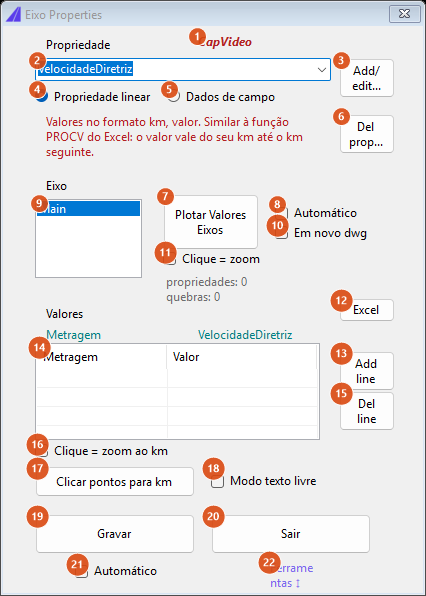
The editor as it opens: property VelocidadeDiretriz pre-selected, filter on Linear property, tools panel collapsed.
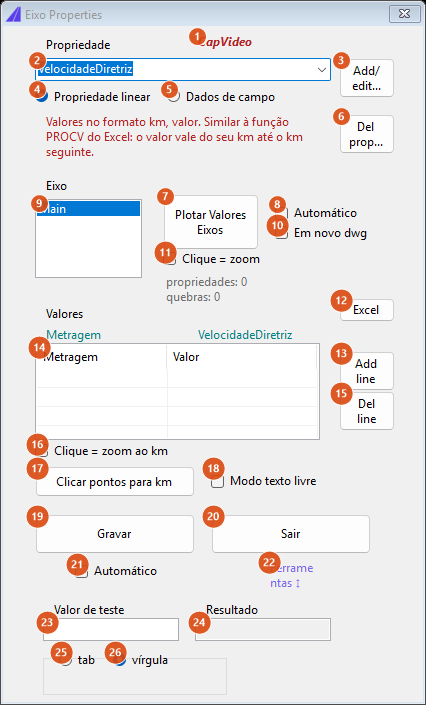
With Tools ↕ (22) clicked: the form grows and reveals the test box (23), the result (24) and the separator pair (25, 26).
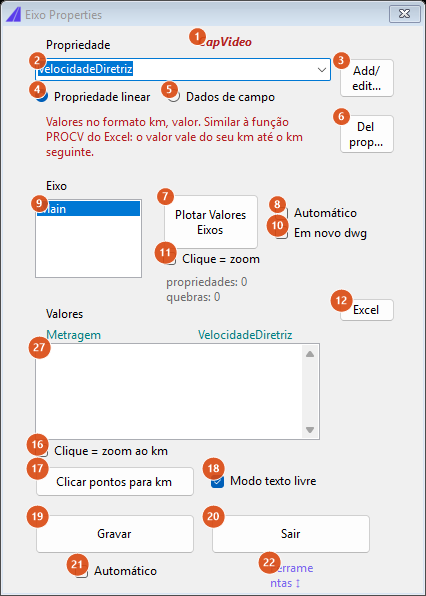
With Free text mode (18) ticked: the grid and the Add/Del line buttons give way to a text box (27) where the series is edited as CSV.
Property and filter
| # | Control | What it does |
|---|---|---|
| 1 | CapVideo | Opens the alignment-properties video on YouTube. |
| 2 | Property | The property the grid is showing. The list carries the header -----Já aplicados:----- followed by the properties already stored on this entity, alphabetically, and — with the filter on Linear property — the header -----Available:----- followed by the recognised ones not yet applied. The field accepts text you type. Choosing a header is the same as choosing nothing. |
| 3 | Add/edit... | Creates the property whose name is in (2), empty, and selects it. Pressing Enter in the box does the same. With a header selected it refuses with Informe o nome da propriedade. |
| 4 | Linear property | Listing filter: besides the ones already applied, offers the recognised linear properties. |
| 5 | Field data | Listing filter: shows only the properties already applied — nothing is offered to add. |
| 6 | Del prop... | Removes the selected property, after confirming Deseja deletar a propriedade 'X' do eixo?. |
| — | help text (red) | Changes with the property chosen: LarguraPista explains the letter t for transitions and the ; for different values right and left; VelocidadeDiretriz reminds you that it is the design speed used in the sight distances and the curve criteria; the others show the general explanation of the km, value format. |
Alignment and plotting
| # | Control | What it does |
|---|---|---|
| 9 | Eixo list | The target of the edit. Because the command loads the properties of one picked entity, the list holds a single row, Main; a second row, Parent, appears when the entity has a parent alignment linked to it, and selecting it switches the editing to the parent's properties. |
| 7 | Plotar Valores Eixos | Cuts the alignment at the break stations of the selected property and draws one strip per stretch, each marked with the value that applies there. The command line reports how many strips came out. With no property chosen it refuses with Selecionar uma propriedade. |
| 8 | Automático (plotting) | Re-plots after every change to the table (row added, removed, or points clicked). |
| 10 | In New Dwg | Not available in this version: the command draws in the current drawing, says so on the command line, and unticks the box by itself after plotting. |
| 11 | Click = zoom | Zooms to the alignment when you select a row of list (9). |
| — | counter (grey) | propriedades: N / quebras: N — how many properties the entity carries and how many break points they add up to. |
| 12 | Excel | Saves the current table to the store and exports all the entity's properties to an Excel spreadsheet, with the columns Item, Station and Value. |
Value table
| # | Control | What it does |
|---|---|---|
| 14 | Metragem / Value grid | The break points of the selected property, in increasing station order. Clicking a cell opens a small box to edit it: the column you clicked decides whether you edit the station or the value. A non-numeric station is refused with Value must be numeric. After every edit the grid is re-sorted. |
| 13 | Add line | Asks for the station and then the value, and appends the row. An empty station cancels; a non-numeric station is refused. |
| 15 | Del line | Removes the selected row. |
| 16 | Click = zoom to km | Not used by this version. |
| 17 | Clicar pontos para km | Hides the form and enters a click loop: Pick a point on the alignment (Esc to finish). Each point is projected on the alignment and becomes a station; a point far from the alignment is dropped with a warning on the command line. When the loop ends, CapCad asks for the value of each station found, one at a time, and appends the rows. |
| 18 | Free text mode | Swaps the grid for a text box (27) where the series is edited as CSV — one station,value line per break point. On leaving the box, the text is converted back into the grid; text that is not valid CSV makes CapCad ask Text entered is not valid csv. Record it anyway?. |
| 27 | CSV text box | Visible only with (18) ticked. |
| 21 | Automático (saving) | Writes to the store after every change of the table, without waiting for Record. |
| 19 | Record | Passes the table to the in-memory store and writes Gravado in green beside it. The form stays open. The write to the drawing happens when the form closes with OK. |
| 20 | Exit | Saves and closes. The edited properties are then written to the entity, and the command line reports how many linear properties, how many break points, how many point properties and how many pins were saved. |
| 22 | Tools ↕ | Opens and closes the bottom panel with the test box. |
| 23 | Test value | The station to look up. |
| 24 | Result | Read-only: the value the series returns at the station of (23), recomputed on every keystroke. Empty when no property is chosen or the station is not numeric. |
| 25 | tab | Not used by this version. |
| 26 | comma | Not used by this version. The separator of the stored pairs is always the comma. |
The DataTypes form
CAPCAD_ALIGNMENT_DATASET opens a browser of the published data types: what each DataType means and what its default value is. It pins the set to Eixo and disables the selector.
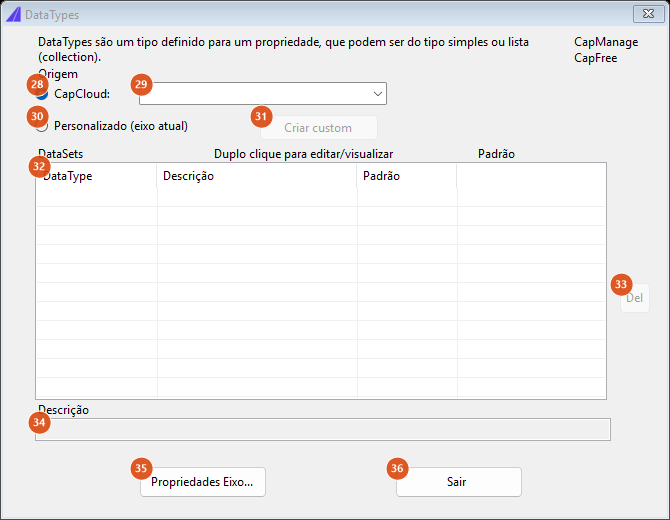
As the command opens it: source CapCloud:, set pinned to Eixo, list in blue and read-only.
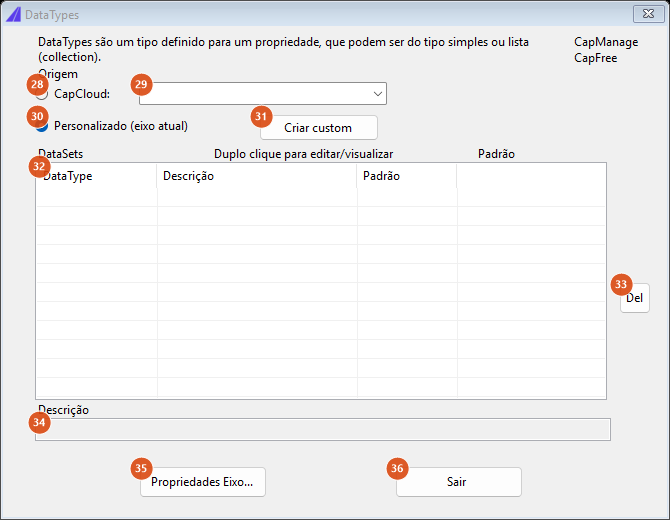
With Custom (current alignment) ticked: the list turns black and the editing buttons are released.
| # | Control | What it does |
|---|---|---|
| 28 | CapCloud: | Source of the DataTypes: the defaults published on the CapCloud service. In this source the list is painted blue and buttons (31) and (33) are disabled — they are for reference only. |
| 29 | DataSets | The set to list. The command pins it to Eixo and disables the box. (Opened by CAPCAD_CRITERIA_DATASET, the same form opens with Material and the box free.) |
| 30 | Custom (current alignment) | Source: the alignment's own metadata. Not available in this version: the list comes back empty and the window title warns metadados do eixo ainda não expostos. The editing options are released all the same. |
| 31 | Criar custom | Not available in this version: the title bar shows the warning Adicionar datatype (FORM_ADD_DATA) ainda não portado. |
| 32 | DataType / Description / Default list | One DataType per row: the name, the published description and the default value. Selecting a row copies the description into box (34). |
| 33 | Del | Closes the form recording the rows as accepted; it deletes nothing. |
| 34 | Description | Read-only: the description of the selected DataType. |
| 35 | Propriedades Eixo... | Closes this form and calls CAPCAD_ALIGNMENT_PROPERTIES. |
| 36 | Exit | Closes without accepting. |
This form is a browser of the published catalogue. Nothing you edit in it is written to the alignment: saving is not available in this version, and the command says so on the command line (DataTypes: gravação ainda não portada) when you close it with (33).
Speed query
CAPCAD_ALIGNMENT_SPEED_QUERY has no form. It enters a click loop (Esc or Enter ends it) and, for each point:
- Projects the point on the active alignment, finding the station, the segment and the direction (increasing or decreasing, according to the side you clicked).
- Reads the design speed from the alignment's
VelocidadeDiretrizproperty. - Reads the regulated speed from the speed-limit sign blocks in the drawing: every block whose effective name is exactly
R-19is paired with its support, the support is projected on the alignment (up to 100 units away) and the sign's EXTRA attribute goes into a per-station table — one central table and two lateral ones, left and right. On an alignment of highway type the search runs through the physical segments; on the central segments the central table applies, and on the others the side you clicked chooses the left or the right table. - Shows a box with the station, the segment number, the direction and the two speeds.
Two things to know:
- The design speed is read with the station of the previous click, not the current one — so the first point always looks up station 0.
- A drawing with no speed-limit sign reports
0 (lida das R19s), not "not found".
The block name the query looks for is R-19. Outside a sign library that uses that name, step 3 finds nothing and only the design speed is answered.
How the options combine
The step reading
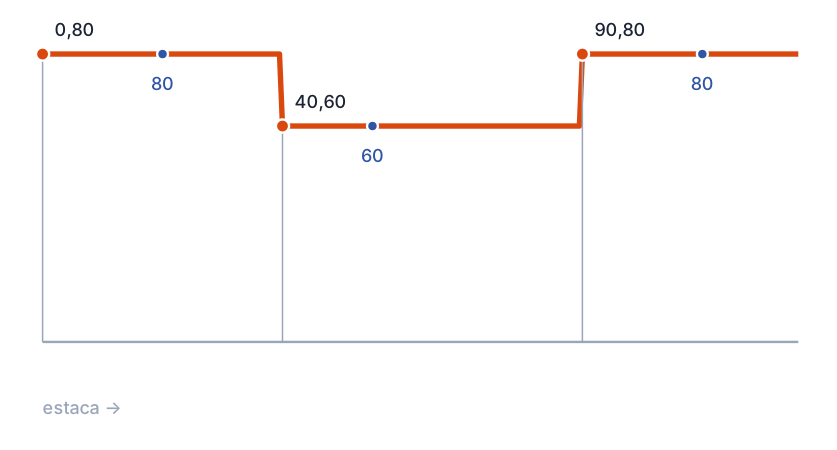
A property with three break points — 0,80, 40,60 and 90,80 — and what it returns. The orange points are the break points you typed; the blue ones are three queries: at station 20 the value is 80, at 55 it is 60, at 110 it is 80. The value changes exactly at the break station, and holds from there to the next break.
Plotar Valores Eixos
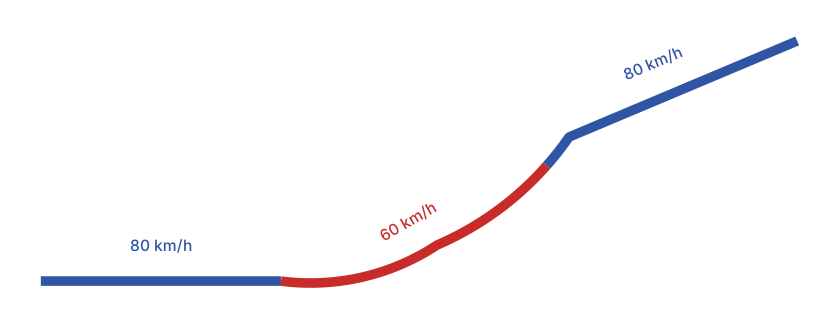
The same property plotted along the alignment with Plotar Valores Eixos (7): the alignment is cut at stations 40 and 90 and comes out as three strips, each matching the value in force on that stretch. Each strip keeps the alignment's length factor and gets the real station of its start point, so the chainage keeps matching.
Remembered between sessions
Nothing. Neither form saves user preferences: filters, check boxes and the tools panel go back to the factory state every time they open. What persists are the properties themselves, stored on the drawing entity.
Notes
- The properties live on the entity, not in the alignment file. The Properties tab of the Alignment Manager writes into the
.capcadfile; they are two different places. - Automatic migration from the old format. If the entity still carries the properties in the old format, they are read that way and the command line warns Legacy CSV properties found — will be saved as JSON.; on the first save they move to the new format.
- The command's own prompts and warnings (Select the alignment:, Pick a point on the alignment, Legacy CSV properties found…) read the same in every language.
- Several captions stay Portuguese in every language: CapVideo, Del prop..., Plotar Valores Eixos, both Automático boxes, Excel, the Item and Metragem headers, Add line, Del line, Clicar pontos para km, the Eixo list label, the Gravado confirmation, and the window titles Eixo Properties and DataTypes. On the DataTypes form the same is true of Criar custom and Propriedades Eixo.... They are quoted above as the software shows them.
- Three editor controls are not used by this version: Click = zoom to km (16) and the tab / comma pair (25, 26).
- A value written on its own, with no station in front of it, is not recognised and reads as 0, with no error. Every value needs the
station,valuepair — even a single value, which is written0,<value>. - On the DataTypes form, the description of the selected item appears in box (34) on a single click.
See also
- Alignment Manager — the other route to property editing, stored in the alignment file.
- Alignment Tools — free chainage and the unifilar diagram.
- Draw and edit the alignment — draw the alignment, auxiliary alignments, identify a segment and clean the road.
- Station Navigator — the properties read back at a picked point.