| Command | CAPCAD_BATCH_SCRIPT |
| Shortcut | none |
| Ribbon | CapCad tab › CAD Utilities panel › Tools split button › Batch Script & Dwg Tools |
| Category | NEW |
| Form | BatchScriptForm — CapCad Batch Script, two tabs (Batch Script and Dwg Utils). Modeless: the drawing stays live and the form stays open while the script runs |
| Hosts | AutoCAD. On ARES Commander the command answers with the not-available notice |
| Also opened by | the Batch button of the sign-check form (CAPCAD_SIGN_FILL), which runs this command so you can pick the sign validation preset by hand |
A sequence of commands you repeat every day becomes one button. Instead of typing purge, zoom extents, bind and save into every drawing, you write the routine once, tick the usual tasks and hit run.
- Write it or load it. The body of the script can be typed in the box or read from a
.scrfile you already have. - The common tasks are already there. Full purge, layer 0 current, zoom extents, bind all xrefs, audit and save are checkboxes, not script lines.
- CapCad's own commands go into the routine. CapCad's command-line versions — the ones beginning with
-— work inside the script like any CAD command. - Test it in the open drawing. The run happens in the drawing in front of you, so you see the effect before you think about running it over many files.
- And a clean-up utility. The second tab copies every model-space entity into a new dwg, leaving out whatever sits on a frozen layer.
What it does
The command opens a two-tab form.
On the Batch Script tab you assemble a routine: the body of the script in the text box, plus a list of extra parameters ticked in the checkboxes. When you click Run script in THIS drawing to test it…, CapCad assembles one single piece of text and hands it to the open drawing's command line, in this fixed order:
- the script's lines, one by one, exactly as written (if Script: is ticked);
-PURGEof everything, with no confirmation (Purge all);CLAYERto layer0(Layer "0" active);ZOOM Extents(Zoom extents);-XREF Bind *(Bind all Xrefs);AUDITwith error correction (Audit);TILEMODE 0orTILEMODE 1(Paper space active / Model space active);QSAVE(Save the drawing).
Because the text is handed to the CAD's command queue, the routine only starts once the current command finishes: the form stays open and you watch the commands run on the command line.
On the Dwg Utils tab there are three content-copying buttons. In this version only the first is available.
Workflow
- Run
CAPCAD_BATCH_SCRIPT. The form opens beside the drawing. - Write the routine in the script box (2, 13), or load a ready
.scr(3). - Tick the extra parameters you want (4 to 12). Note that Save the drawing is ticked already.
- Click Run script in THIS drawing to test it… (14) and watch the command line.
- Fix whatever needs fixing and run again — the form does not close.
The Batch Script tab
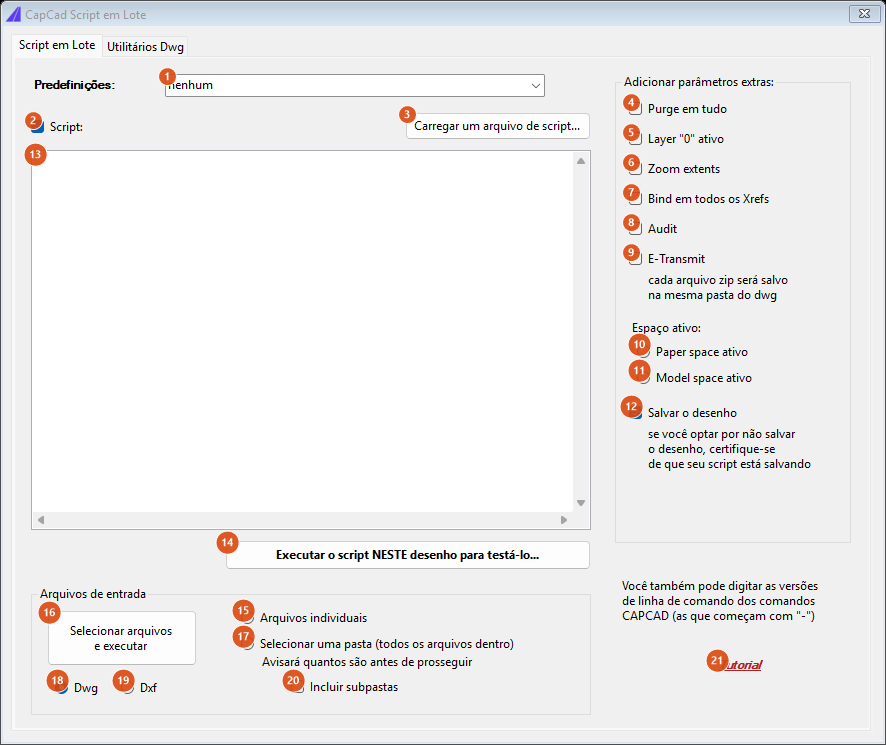
The screenshots on this page are of a Portuguese session; the numbering is the same in both editions, and the tables give the English captions. The script box opens empty and the parameter boxes unticked — except Save the drawing.
The script
| # | Control | What it does |
|---|---|---|
| 1 | Presets: | Not available in this version: the list opens showing the text none. |
| 2 | Script: | On by default. Off, the contents of box 13 are ignored and the run carries only the extra parameters you ticked. |
| 3 | Load a script file… | Opens a file picker (*.scr, or all files) and drops the file's contents into box 13, replacing whatever is there. |
| 13 | script box | The body of the routine. Every line is sent exactly as written, with a line break at the end — which the command line reads as Enter. A blank line is worth one Enter, exactly as in a .scr. |
The text beside the parameter frame reminds you that CapCad's command-line versions — the ones beginning with -, such as -CAPCAD_PROJECT_SET or -CAPCAD_STYLE_SET — can be used here too. They are described in Command-line commands.
Add extra parameters
| # | Control | What it does |
|---|---|---|
| 4 | Purge all | Adds a -PURGE of every unused item, with no confirmation prompt. |
| 5 | Layer "0" active | Makes layer 0 the current layer. |
| 6 | Zoom extents | A ZOOM Extents. |
| 7 | Bind all Xrefs | An -XREF Bind *: every external reference becomes part of the drawing. |
| 8 | Audit | An AUDIT with error correction. |
| 9 | E-Transmit | Not available in this version. The moment you press run, a dialog says so; the rest of the routine is assembled and sent as normal. The text beside it describes the intent — "each zip file will be saved in the same dwg folder". |
| 10 | Paper space active | Sets TILEMODE to 0 before saving. |
| 11 | Model space active | Sets TILEMODE to 1. Neither comes ticked: with both unticked, the active space is not touched. |
| 12 | Save the drawing | Ticked by default: adds a QSAVE at the end of the routine. The text below warns that, unticked, your script has to save on its own. |
The extra parameters always go in this order, after the script, whatever order you ticked them in.
Input Files
The multi-file runner is not available in this version: button 16 answers with a notice saying so, and the four controls beside it are not used.
| # | Control | What it does |
|---|---|---|
| 15 | Individual files | Would pick the drawings one by one. |
| 16 | Select files & run | Not available in this version. |
| 17 | Select a folder (all files inside) | Would pick a whole folder. The text below says the command would warn how many files there are before going on. |
| 18, 19 | Dwg, Dxf | The format of the files to sweep. Dwg comes selected. |
| 20 | Include sub-folders | Would extend the sweep to sub-folders. |
| # | Control | What it does |
|---|---|---|
| 14 | Run script in THIS drawing to test it… | The only run path available: assembles the text and sends it to the open drawing's command line. |
| 21 | Tutorial | Not available in this version. |
The Dwg Utils tab
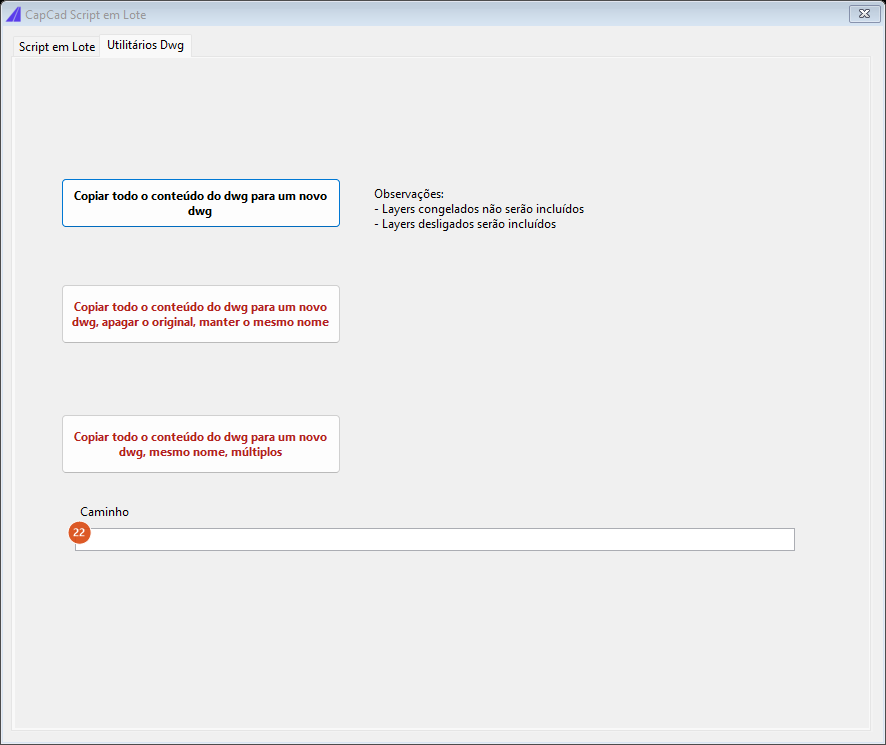
The three buttons carry no number.
| Button | What it does |
|---|---|
| Copy all dwg content to a new dwg | Copies every model-space entity into a new dwg and saves it. Entities on a frozen layer are left out; those on a layer that is merely off are included. When it finishes, a dialog shows the path written. Nothing to copy: "Nothing to copy." |
| Copy all dwg content to a new dwg, delete original, keep same name | Not available in this version. |
| Copy all dwg content to a new dwg, same name, multiple | Not available in this version. |
| # | Control | What it does |
|---|---|---|
| 22 | Path | The copy's destination file. Left empty, the command proposes <drawing name>_copy.dwg in the drawing's own folder and writes that path here. |
The notes beside the buttons are the form's own text and hold as a rule: frozen layers are not included, layers that are off are.
Remembered between sessions
Nothing. The form writes no preferences: the script box, the extra parameters and the copy path come back to the factory state on every open, with Save the drawing and Dwg ticked. The form is single per session — running the command again brings back the same window, with whatever you had typed, until you close it.
Notes
- The routine runs afterwards, not during. The text is handed to the CAD's command queue, so the script starts when the current command ends. Do not expect to see the result the instant you click, and do not close the drawing before the routine finishes.
- The script goes through raw. No line is validated. A mistyped command leaves the command line stuck waiting for an answer that the script's next line will supply — and from there everything is out of step. Test new routines in a scratch drawing.
- With nothing ticked, nothing is sent. With Script: unticked, the box empty and no extra parameter, the run simply sends no text at all.
- The four Input Files controls form a single group. Individual files, Select a folder, Dwg and Dxf sit in the same container and therefore untick each other: choosing Dxf clears the folder choice, and vice versa. They are not used while the multi-file runner is not available.
- The copy is not a "save as". The copy button writes a new dwg with the model-space entities; layouts, viewports and anything in paper space do not go with it.
- Not available in this version: the presets (1), E-Transmit (9), the multi-file runner (15 to 20) and the two red buttons on the Dwg Utils tab.
See also
- Command-line commands — the hyphen commands that make CapCad scriptable.
- Batch insert (spreadsheet to drawing) — the other way to do the same job many times over.