| Commands | CAPCAD_ACTION_IMPLANT, CAPCAD_ACTION_MAINTAIN, CAPCAD_ACTION_REMOVE, CAPCAD_ACTION_RELOCATE and CAPCAD_ACTION_PANEL |
| Shortcuts | IMP / COL (insert) · MAN / EXI (keep) · REM / RET (remove) |
| Ribbon | CapCad tab › Sinalização Vertical panel › Vertical Ações button (opens CAPCAD_ACTION_PANEL) |
| Category | Vertical (the four actions) · Horizontal: tools (the panel) |
| Form | none for the four actions: they ask for the selection on the command line. CAPCAD_ACTION_PANEL opens CorrigeForm ("Vertical Tools") on its Actions tab; the form is modeless |
| Hosts | the four actions: AutoCAD, BricsCAD, GstarCAD, ZWCAD and ARES Commander. CAPCAD_ACTION_PANEL: AutoCAD |
| Also opened by | the Change actions… button on the Commands tab of Insert Vertical, and by CAPCAD_SIGNS_FIX / CAPCAD_SIGN_TOOLS, which open the same form on another tab |
A sign is not just a block: it carries the project's decision. Recolouring a block by hand tells the drawing what the sign is; the action tells the whole project, and the quantity take-off can see it.
- One action, three consequences at once. Layer, graphic representation and sign attributes change together and stay consistent with each other.
- In bulk, on the selection you already made. Select dozens of signs and supports, run
IMP,MANorREM: each entity gets the treatment that suits what it is. - It feeds the reports. The vertical-signing take-off splits insert / keep / remove by reading exactly what these commands write.
- It reaches past the sign. In the same pass the command can relabel road markings, guardrails and generic CapCad items to the same action.
- It follows the project style. How each action looks (grey, grey with an X, in colour) comes from the active style, not from a rule hard-wired into the command.
- Urban mode included. With an urban style, insert becomes place and the support code is rewritten with the right prefix.
What it does
Besides its code, every sign placed by CapCad carries the action the project has taken on it: the sign is to be inserted (it is new), kept (it exists and stays), removed (it exists and goes) or relocated (it exists and moves). The action is not a loose annotation: it is what decides
- the layer the sign and its support sit on (
ROAD_SIGN_NEW,ROAD_SIGN_KEEP,ROAD_SIGN_REMOVE,ROAD_SIGN_RELOCATE); - the sign's graphic representation (in colour, grey, grey with an X);
- the attributes the block stores and the reports read;
- and therefore which column of the take-off the sign lands in.
The four commands on this page change the action of signs already in the drawing. The action at insertion time is chosen in Insert Vertical; here you correct, promote or demote what is already drawn.
Each command asks for a selection and treats every entity according to what it is: a sign is restyled and moved to another layer, a support gets the support treatment, and a line or polyline on a vertical-signing layer only changes layer. With the item options on, road markings, guardrails and entities on CAPCAD_ITEM layers follow the action too.
CAPCAD_ACTION_PANEL only opens the Vertical Tools form on its Actions tab, where the same commands sit on buttons, next to the sign replace and swap tools.
Workflow
- Select the signs, supports and other elements whose action is to change. An existing selection is used: you do not have to run the command first.
- Type the action's shortcut:
IMP,MANorREM(or the synonymsCOL,EXI,RET). If nothing is selected yet, the command asks for a selection; confirm with Enter. - The command walks the selection. Signs are restyled and moved to another layer, supports get the support treatment, and lines and polylines on vertical-signing layers only change layer.
- The command line reports how many entities changed and, when the item options are on, how many road-marking layers and guardrails were relabelled.
From the form the path is the same: CAPCAD_ACTION_PANEL, one click on Insert (1), Keep (2) or Remove (3), and the selection in the drawing.
An entity that cannot be treated does not stop the pass: the command says so on the command line and moves on.
The four actions
Insert — CAPCAD_ACTION_IMPLANT (IMP, COL)
The sign becomes a new installation. It is the only action that gives the sign back its original block: if it was drawn grey (…-GrayShaded) or grey with an X (…-XShapedGray), the command reinserts the plain block at the same position, rotation and scale, with the attribute values preserved.
What changes on the sign:
| Layer | ROAD_SIGN_NEW (ACI 5, blue) |
| Block | back to the name with no style suffix |
Action attribute (SIGN_STATE) |
NEW; COL in a Portuguese profile under an urban or a specific country style |
Long-form action attribute (SIGN_STATE_2) |
IMPLANTAR, or Sit: Implantar when the style turns the situation labels on — Portuguese in every language, see the note below |
| Composite-code attribute | the last character is replaced by IMP |
If the sign is already an insertion (its composite code ends in I), the command says Já é IMP and leaves it alone.
Two block families — one warning-marker family and the alignment markers — have their .1 inversion suffix stripped from the block name and the inversion reapplied as a dynamic state, so the drawing does not flip.
Keep — CAPCAD_ACTION_MAINTAIN (MAN, EXI)
The sign becomes an existing sign that stays where it is. The command creates (once per code) a copy of the block definition carrying the style suffix — -GrayShaded by default — converts every element of that copy to grey by luminance, and reinserts the sign with that definition at the same position, rotation and scale.
| Layer | ROAD_SIGN_KEEP (ACI 2, yellow) |
| Block | <code>-GrayShaded (or whatever the project style defines for KEEP) |
| Representation | grey sign on a yellow layer |
| Composite-code attribute (and its alias) | the last character becomes M |
Hence the usual shorthand: grey on a yellow layer. The grey is the representation; the yellow is the layer.
Remove — CAPCAD_ACTION_REMOVE (REM, RET)
The sign becomes a sign to be taken out. The mechanism is the same as Keep, with whatever style the project defines for REMOVE — by default XShapedGray, which greys the sign and draws an X from corner to corner of the block's extent.
| Layer | ROAD_SIGN_REMOVE (ACI 1, red) |
| Block | <code>-XShapedGray (or whatever the project style defines for REMOVE) |
| Representation | grey sign crossed by an X |
| Composite-code attribute (and its alias) | the last character becomes R |
Relocate — CAPCAD_ACTION_RELOCATE (RMJ)
Marks the sign as relocated — an existing sign that leaves one point and comes back at another. The layer meant for this action is ROAD_SIGN_RELOCATE (ACI 181); there is also ROAD_SIGN_RELOCATED (ACI 30) to tell the sign that is leaving from the one that has already arrived.
CAPCAD_ACTION_RELOCATEis not available in this version. To mark a relocation, set it at insertion time in Insert Vertical, or use the vertical-signing fix command.
Replace and swap
Two neighbouring operations, on buttons 12 to 14 of the panel, with commands of their own — see Swap and replace signs:
- Replace individual (
CAPCAD_SIGN_SUBSTITUTE): asks for a new code (or Enter for the same sign), asks for the sign, and reinserts. - Replace multiple (with the same) (
CAPCAD_SIGN_SUBSTITUTE_MULTI): the same over a selection, always with the same sign, without asking for a code. - Swap (
CAPCAD_SIGN_SWAP): swaps the selected sign for another, by code.
What gets written on the sign
The action does not use XData: it lives in the layer and in the block's attributes. The tag names follow the product culture — SIGN_ in an English profile, SENAL_ in Spanish, PLACA_ in Portuguese.
| Tag (English profile) | Written by | Values |
|---|---|---|
SIGN_STATE |
Insert | NEW |
SIGN_STATE_2 |
Insert | IMPLANTAR, or Sit: Implantar with situation labels — Portuguese in every language, see the note below |
| composite code | all three actions | Insert replaces the last character with IMP; Keep and Remove replace it with M and R |
SUP_ACAO |
the actions, on supports, when the project asks for the action on the support | NEW / KEEP / REMOVE (English profile), NUEVA / EXISTENTE / RETIRAR (Spanish), IMP / MAN / REM (Portuguese) |
SUP_COD |
the actions, on supports, in urban mode | the code rewritten: COL <code>, <code> EX, RET <code>, SUBST <code> |
SOLUÇÃO |
Remove, in the restyle path | the literal REMOVER, in every language |
The vertical-signing reports classify each sign by its layer; only under one country-specific paradigm do they read the action attribute first and use the layer as a fallback. So on most projects the right layer matters more than the right attribute.
The action layers
The names below are the ones an English profile writes. The active style may add a prefix (the sample style uses CAPCAD_, giving CAPCAD_ROAD_SIGN_NEW), rename the layer and change the colour; other cultures use another stem (SINA_VERT_ in Portuguese, SENA_VERT_ in Spanish). Layers that do not exist are created on the spot.
| Action | Layer | Colour (ACI) |
|---|---|---|
| Insert | ROAD_SIGN_NEW |
5 (blue) |
| Keep | ROAD_SIGN_KEEP |
2 (yellow) |
| Remove | ROAD_SIGN_REMOVE |
1 (red) |
| Relocate | ROAD_SIGN_RELOCATE |
181 |
| Relocated (already in its new place) | ROAD_SIGN_RELOCATED |
30 |
| Replace | ROAD_SIGN_REPLACE |
4 (cyan) |
| Custom action | ROAD_SIGN_<ACTION> |
no colour defined |
Supports
A support selected along with the signs gets a treatment of its own:
- Fill. On insert, the support's
Visibility1dynamic state gains the(Preenchido)suffix if it does not already have it — that is the filled, to-be-installed support. The support is neither reinserted nor swapped for another block. - Action attribute. When the project has the action on the support option on, the
SUP_ACAOattribute receivesNEW,KEEPorREMOVEin the product's culture. - Code, in urban mode. The
SUP_CODattribute is rewritten to match the action:RET <code>to remove,<code> EXto keep,COL <code>to place,SUBST <code>to replace. Support codes known to be existing structures —PIL,OAE,SPUandCS— are left alone.
In this version Keep and Remove apply to a selected support the same restyling as to signs, creating a
<support>-GrayShadedor-XShapedGraydefinition. If you only want the support's layer to change, leave it out of the selection for those two actions.
Urban mode
Urban mode is switched on by the project style (a handful of style paradigms are treated as urban), chosen in the Project Manager. What changes in the actions:
- Insert writes
COL(place) in the short action attribute instead ofIMP. The same applies to some country-specific styles. - The support code is rewritten with the
COL,RETandSUBSTprefixes and theEXsuffix, as above. - The replace action (
SUB/SUBST) becomes acceptable on signs and supports, taking the sign to theROAD_SIGN_REPLACElayer.
The panel's button captions do not change: they stay Insert, Keep and Remove. What changes is the values written and the alternative keyboard shortcuts (COL, EXI, RET), shown in blue under each button.
Beyond signs
With the item options on (see the Item action options frame of the panel), the same pass treats three more families of entity:
- Road markings. Entities on road-marking layers have their action suffix rewritten:
_REMto remove and_MANto keep. Insert and relocate strip the suffix, giving the marking back its base layer. This sweep runs before the sign sweep, because the sign pass erases and re-creates entities. - CapCad items. Entities on
CAPCAD_ITEM*layers go toCAPCAD_ITEM_IMP,_MAN,_REMor_RMJ. In this version that treatment follows the Horizontal option, not the Layer CAPCAD_ITEM option. - Guardrails. Guardrails in the selection are moved to the three layer families of the new action — body, entry terminal and exit terminal — resolved from the layer catalogue (
DEFENSA_IMP,DEFENSA_MAN,DEFENSA_REM,DEFENSA_SUB; these are not renamed per culture). The relocate action has no guardrail family and moves nothing.
The reach comes from the user settings, not from the command line, and applies equally to all four action commands. With those options unset, the commands treat only signs, supports and lines on vertical-signing layers.
The form
CAPCAD_ACTION_PANEL opens the Vertical Tools form on its Actions tab. The other tabs — Fix, options, Tools and Utils — belong to the Vertical Tools fix command and are documented with it.
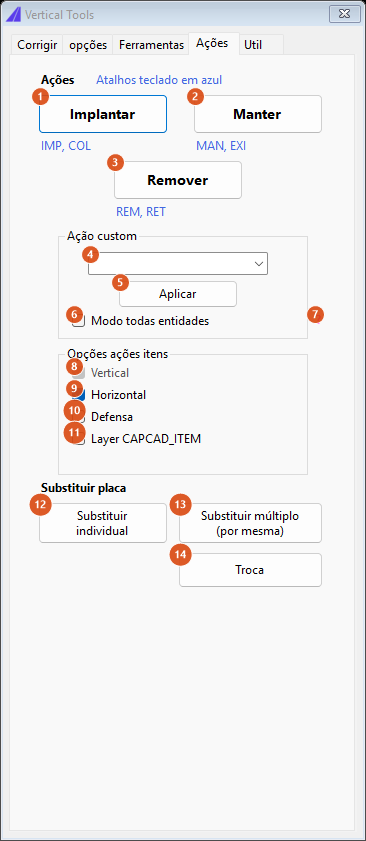
The "Actions" tab of the Vertical Tools form. Each action's keyboard shortcuts appear in blue under its button.
Actions
| # | Control | What it does |
|---|---|---|
| 1 | Insert | Runs CAPCAD_ACTION_IMPLANT. Equivalent keyboard shortcuts: IMP, COL. |
| 2 | Keep | Runs CAPCAD_ACTION_MAINTAIN. Shortcuts: MAN, EXI. |
| 3 | Remove | Runs CAPCAD_ACTION_REMOVE. Shortcuts: REM, RET. |
The selection is asked for just after the click. There is no relocate button on this tab.
Custom action
| # | Control | What it does |
|---|---|---|
| 4 | (action list) | The name of the custom action to apply. In this version the list opens empty; the text can be typed. |
| 5 | Apply | Not available in this version: the button answers "Custom action not available in this version" on the command line; with box 4 empty it answers "Enter the custom action first." |
| 6 | All entities mode | Extends the custom action to any entity in the selection, not only those recognised as a sign, support or item: each entity's layer has the previous action suffix removed and the new one added. It applies to the custom action only; the three fixed buttons never use this mode. |
| 7 | ? | A help marker with no text attached in this version. |
A custom action takes the sign to the layer ROAD_SIGN_<ACTION> — ROAD_SIGN_DAMAGED, ROAD_SIGN_PRIORITY and so on, from the custom-action list the profile offers in Insert Vertical — which lets those signs be separated in selections, layer filters and reports.
Item action options
These set how far the actions reach beyond the signs: which other entity families follow the change. The four action commands read that reach from the user settings, not from the form — including when they are fired from the keyboard with the form closed.
| # | Control | What it does |
|---|---|---|
| 8 | Vertical | Always on and disabled: signs and supports are always treated. |
| 9 | Horizontal | Extends the action to the road-marking layers in the selection (the _REM / _MAN suffix rewrite) and to entities on CAPCAD_ITEM* layers. |
| 10 | Guardrail | Extends the action to the guardrails in the selection, moving body and both terminals to the new action's layers. |
| 11 | Layer CAPCAD_ITEM | The reach for CapCad's generic items. In this version the items follow the Horizontal option (9) and this box is not used. |
In this version the four boxes in this frame are indicative only: the effective reach is whatever is stored in the user settings.
Replace sign
| # | Control | What it does |
|---|---|---|
| 12 | Replace individual | Runs CAPCAD_SIGN_SUBSTITUTE: asks for the new sign's code (or Enter for the same one), asks for the sign, and reinserts. |
| 13 | Replace multiple (with the same) | Runs CAPCAD_SIGN_SUBSTITUTE_MULTI: replaces every sign in the selection with itself, without asking for a code. |
| 14 | Swap | Runs CAPCAD_SIGN_SWAP: swaps the selected sign for another, by code. |
Remembered between sessions
The reach of the actions (Horizontal, Guardrail, Layer CAPCAD_ITEM) lives in the user settings and is read by every action command on every run — including by the keyboard shortcuts, with no form open. Nothing else on this tab is remembered: the custom-action box and All entities mode come back empty every time the form is opened.
The form itself is one per session: reopening it through CAPCAD_SIGNS_FIX, CAPCAD_SIGN_TOOLS or CAPCAD_ACTION_PANEL brings back the same window, only on another tab, with whatever you had filled in on the others.
Notes
- The sign is erased and reinserted. Every action that changes the representation (insert, keep, remove) erases the block reference and creates another. Position, rotation, scale and attribute values are transferred; XData and CapCad group ids are not. If the sign belonged to a named selection, rebuild that selection afterwards.
- The long-form action attribute is Portuguese in every language. Insert writes it as
IMPLANTAR— or as the situation labelSit: Implantarwhen the style turns the situation labels on — whatever the profile, while the short action attribute reads your own language. The reports classify by layer, so the take-off is unaffected. - The styled definition is created once. The
<code>-GrayShaded(or-XShapedGray) block is built for the first sign of that code to go through the action, and reused by the ones after it. Blocks nested inside the definition are exploded so the colour conversion reaches every element. - The representation comes from the style, not from the command. The project style says which representation each action uses, in its sign action-styles property. When the style says
Normalfor an action, the sign is not restyled. The factory values are: insertNormal, keepGrayShaded, removeGrayShaded— the sample style shipped with CapCad sets remove toXShapedGray, the grey with an X. - Some representations are not available in this version:
OuterShape,GrayShadedOuter,Ticks,DeleteHatchand theCodeInBodyvariants. A style that asks for one of them leaves the sign unchanged. - Work-zone colours. The
OBRA(ACI 30, orange) andLIMA(ACI 60) representations recolour the whole sign instead of greying it; they are used in the sign colour variants, not in the actions. - Missing layers are created, with the name, colour and description from the active style's layer catalogue. Never type a layer name by hand: change the action and the layer follows.
- The window title and the command line's count messages are English in every language, and a few replies — "Já é IMP" among them — are Portuguese in every language.