| Command | CAPCAD_PROJECT_MANAGER |
| Shortcut | PROJ |
| Ribbon | CapCad tab › Project panel › Project split button › Manage Project |
| Category | Manage: Project |
| Form | ProjectManagerForm (modal, 7 tabs) |
| Hosts | AutoCAD, BricsCAD, GstarCAD, ZWCAD, ARES Commander |
| Also opened by | CAPCAD_CRITERIA_MATERIAL_DEFAULT (opens on the materials-defaults tab), CAPCAD_CRITERIA_TECHNICAL_DEFAULT (opens on the technical-defaults tab) |
| Sibling commands | -CAPCAD_PROJECT_SET (command line), CAPCAD_PROJECT_DATA_ERASE, CAPCAD_ALIGNMENT_MANAGER (Manage tab) |
This is where a dwg stops being a loose file and starts belonging to a project. One screen decides where the signs, the blocks and the pavement inscriptions come from, which style applies, which coordinate system is in use and what the default materials are — and every other CapCad command reads it from there.
- One folder, one
project.config, many drawings. Point as many dwgs as you like at the same folder and they all see the same conventions at once. - Every library category has its own folder. Official signs, common signs, project signs, blocks, typical sets, pavement inscriptions and presets, each with its own Default local button back to the factory value.
- Relative paths. A folder written as
\custom_signsresolves under the project folder, so the whole project can be moved or handed to another office without reconfiguring anything. - Sign appearance per situation. Install, keep and remove each get their own block style and border, set once for the whole project.
- Material defaults that fill the attributes. Substrate, film, post: whatever is in the list feeds the sign block attributes when the materials criteria have no answer.
- Free-form properties. Any name/value pair your office needs to keep with the project goes on the Properties tab and comes back in reports and title blocks.
What it does
CAPCAD_PROJECT_MANAGER opens a modal seven-tab form over the active drawing. It is the front door to everything a CapCad project holds: the Main tab sets (or clears) the link between this dwg and a project folder; the other six edit the contents of the project.config in that folder.
The one thing that governs the whole form is the active project: a folder that is both defined and present on disk. Until there is one, only the Main tab is enabled and Record and exit is disabled — with no folder there is nowhere to write. As soon as the folder is accepted, the other six tabs light up.
There are two writing speeds in this form, and the difference matters:
- Written immediately, without waiting for Record and exit: the project folder, the style, the coordinate system, the four folders on the Folders tab, the sign folders (on leaving the field) and the properties on the Properties tab (Record and Del buttons).
- Written only by Record and exit: the sign border, the attribute colour, the substitution mode, the three sign styles, the layer prefix, the technical criterion and the sign defaults list.
Exit without saving discards only the second group — anything already written stays.
Workflow
- Run
CAPCAD_PROJECT_MANAGER(or typePROJ). - On the Main tab, type or paste the project folder (2) and press
Enter. A path that does not exist turns the field red and nothing is set. An existing folder without aproject.configgets an empty one straight away. - Choose the Style (9) from the list, or point at a
.capstylefile with Selecionar local... (10). The label above the field says where the style came from. - If the project uses geographic coordinates, set the Coord system... (8).
- Go through the Folders and Signs: folders tabs and adjust anything that should not use the library default. Default local returns any row to the factory value.
- On Signs: style, set the sign appearance per situation and the border.
- On the two defaults tabs, maintain the default values for traffic signs.
- On Properties, record the project's free-form properties and the layer prefix.
- Click Record and exit (17).
The form
The numbers are the same in every picture on this page. All seven tabs share the project name at the top (1) and the bottom bar (15 to 19).
About the captures. The screenshots below are from a Portuguese session, because they are the numbered figures shared with the Portuguese edition. The layout and the control numbers are identical in English; where a caption or a control label is Portuguese in an English session, the table below says so.
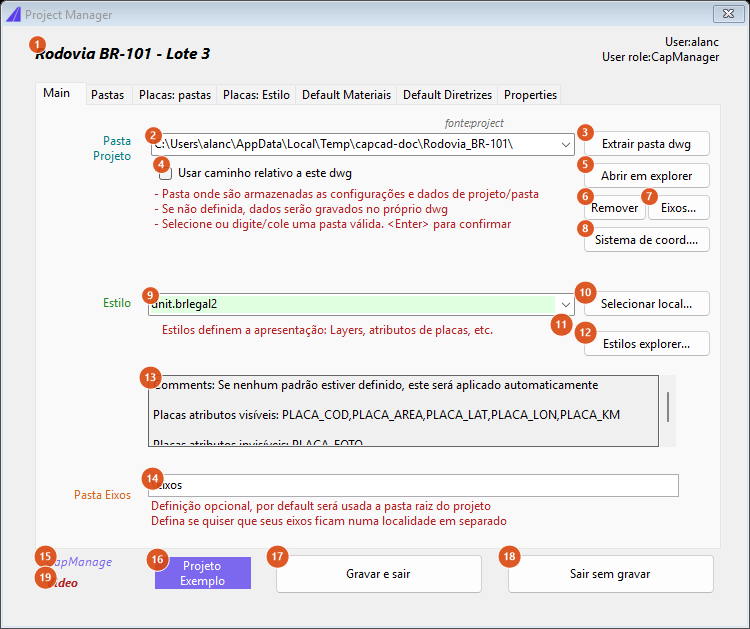
Main tab with an active project: folder set, a style chosen, and the label saying the style came from the project.config.
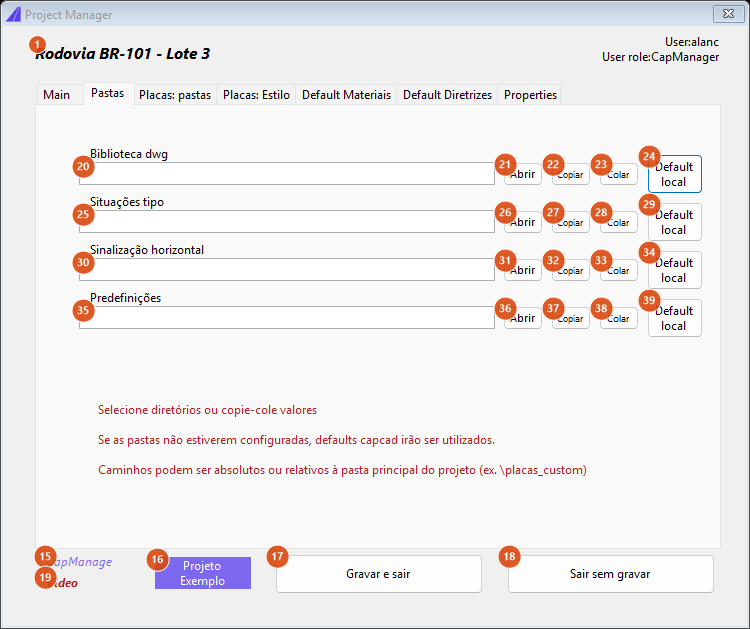
Folders tab: four identical rows, each with Open, Copy, Paste and Default local.
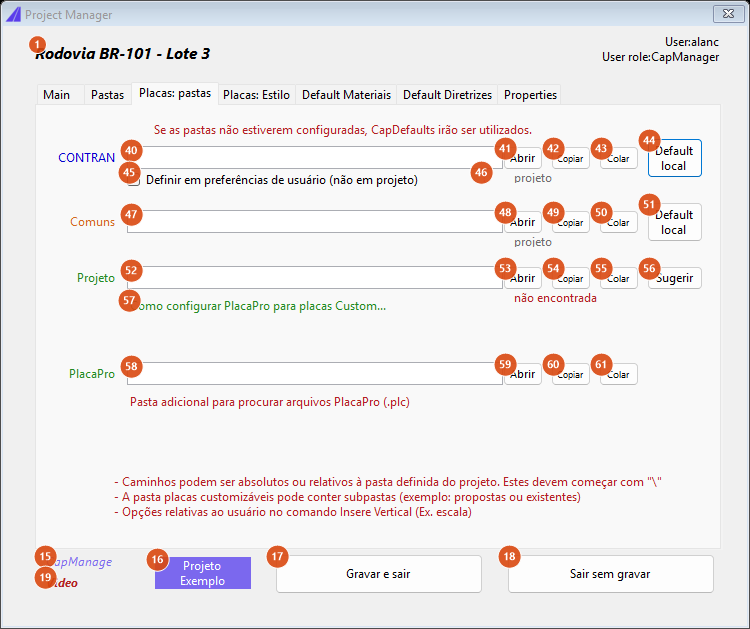
Signs: folders. To the right of each field, where the value came from: project, preferences, ok or not found.
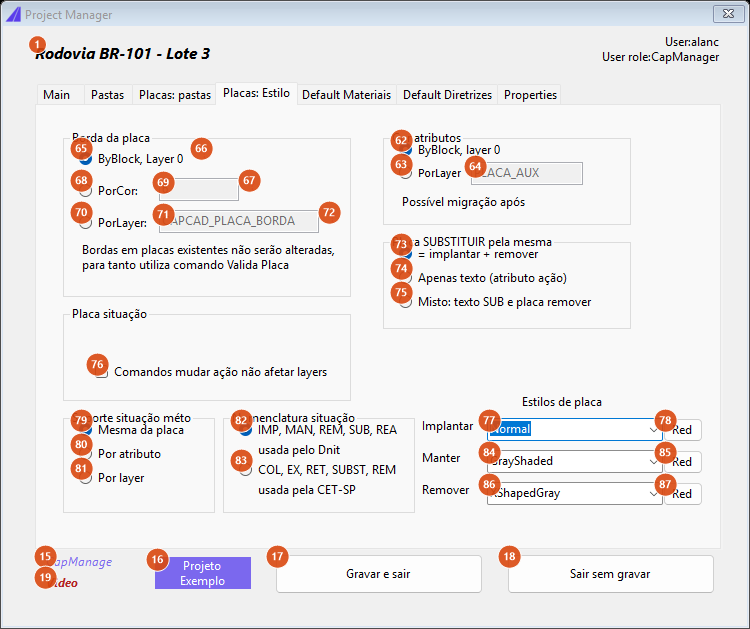
Signs: style. The border text boxes are enabled only when the matching option is selected.
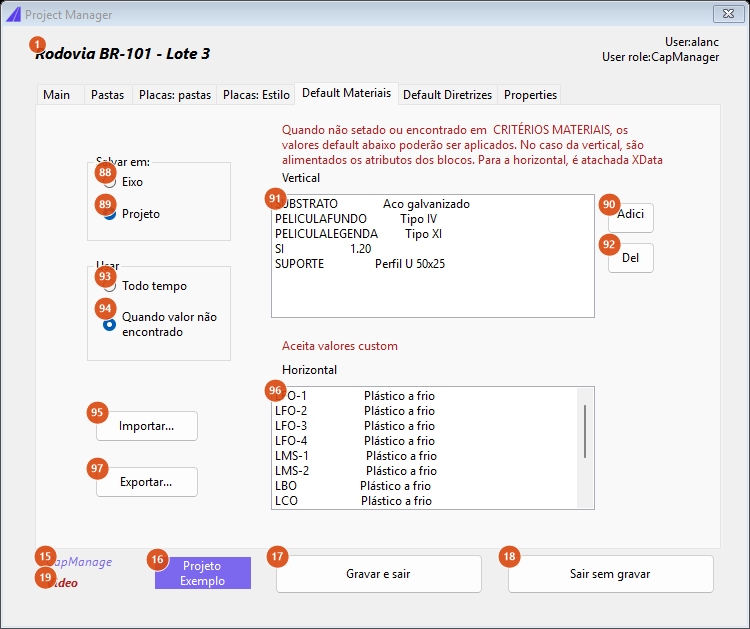
Default materials: the Vertical list is the project's real list (the vertical category of project.config); the Horizontal list is a fixed sample.
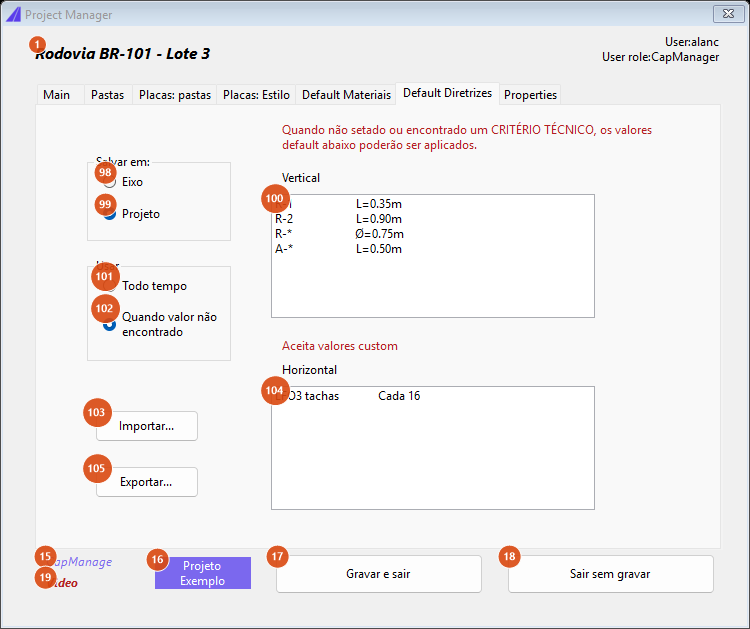
Default guidelines: same structure as the previous tab, for the technical criteria.
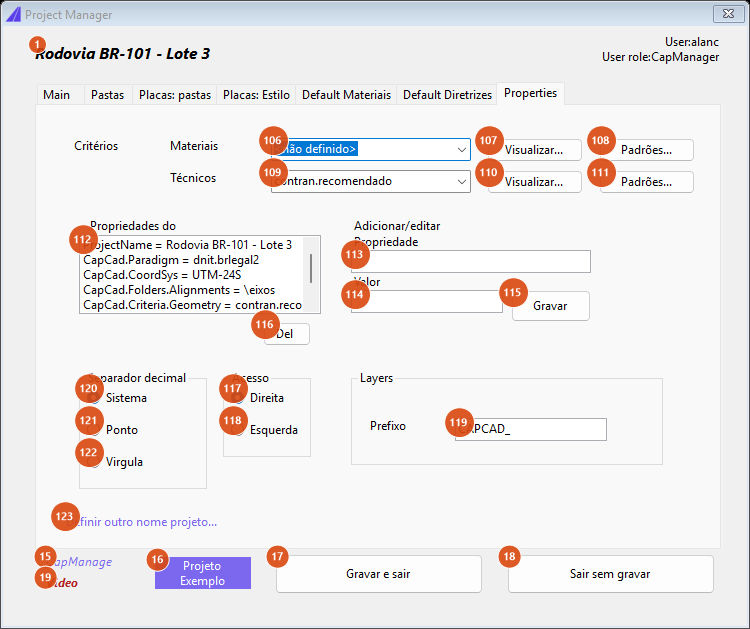
Properties: the project's criteria, the free-form property list read from project.config, and the layer prefix.
Common to every tab
| # | Control | What it does |
|---|---|---|
| 1 | Project name | Read-only. Shows the ProjectName entry of project.config; without it, the last folder name of the path. To change it, use Definir outro nome projeto... (123) on the Properties tab. |
| 15 | CapManage | Opens https://capcad.io/capmanage in the browser. |
| 16 | Projeto Exemplo | Points the drawing at the installed sample project and reloads the form. |
| 17 | Record and exit | Writes everything not yet written (see What it does) and closes. With no active project the button is disabled; if it is triggered anyway, the form says a project folder must be set and returns to Main. |
| 18 | Sair sem gravar | Closes, discarding whatever had not been written yet. |
| 19 | Video | Opens https://capcad.io/videos/project-manager in the browser. |
The top right corner shows the Windows user and the User role. The role is always CapManager, and no control on the form is limited by it.
Tab 1: Main
| # | Control | What it does |
|---|---|---|
| 2 | Pasta Projeto | The field that defines this drawing's project. Type or paste the path and press Enter (or leave the field). A path that does not exist turns the field red and nothing changes. A valid path is written into the dwg's capcad dictionary, the folder's project.config is read, and the whole form reloads. If the folder has no project.config, an empty one is created in it. |
| 3 | Extrair pasta dwg | Not available in this version; type or paste the path into field 2 instead. |
| 4 | Usar caminho relativo a este dwg | Not available in this version. Relative paths on the other tabs work (see the note about the leading \). |
| 5 | Abrir em explorer | Opens the project folder in Windows Explorer. Does nothing if the folder does not exist. |
| 6 | Remove | Asks whether to remove this drawing's project definition and, on confirmation, deletes the link stored in the dwg. The project.config on disk is untouched — only this drawing stops pointing at the folder. |
| 7 | Eixos... | Opens the resolved alignments folder in Explorer (field 14, or the project folder itself when that is empty). |
| 8 | Coord system... | Opens a text box with the current system and validates what you type. UTM-<zone> with a zone from 1 to 60, EPSG:<code> and DS:<Category/Field> are accepted; anything else is refused. Once accepted it is written into project.config (CapCad.CoordSys) or, with no active project, into the drawing's capcad.dwg.coordsys key. |
| 9 | Style | Sets the project's style. The list offers the six names CapCad recognises by family; only capcad.default is country-neutral — the other five are the Brazilian families, listed on the Portuguese page. The field is editable, so any cloud style name or file path can be typed. On confirming the choice (or on leaving the field) the value is written to CapCad.Paradigm; with no active project it stays in memory for the session only. A refused value reports that the style was not applied. The italic label above the field shows where the style came from: project, alignment, dwg, cached or default. |
| 10 | Selecionar local... | Opens a file picker filtered on *.capstyle and *.json and uses the chosen file as the project style — the full path becomes the value of field 9. |
| 11 | ? | Shows the style help: styles define the presentation — layers, sign attributes, colours and naming. Pick a style from the list, or a local file. |
| 12 | Styles explorer... | Not available in this version: it shows a notice. Use CAPCAD_STYLE_EDITOR to edit styles. |
| 13 | Style summary | Read-only. The text is fixed and does not reflect the style chosen in 9; to see a style's content, open it in the style editor. |
| 14 | Pasta Eixos | Where the alignments' .capcad files live. Written to CapCad.Folders.Alignments on leaving the field. Empty means "the project folder itself". A value starting with \ resolves under the project folder. |
Tab 2: Folders
Four rows with the same set of buttons. Typing in a field and leaving it writes the value into project.config immediately.
| # | Control | What it does |
|---|---|---|
| 20 | Dwg library | The project's block folder (CapCad.Folders.Biblioteca). With no value, CapCad looks for the country's dwg-<country>\ folder in the installed local library. |
| 25 | Situações tipo | The folder of the linear typical sets (CapCad.Folders.LinearSet). With no value, DesenhaConjunto\ or LinearSet\ in the local library. |
| 30 | Sinalização horizontal | The pavement-inscription folder (CapCad.Folders.InscrPav). With no value, ROAD_MARKINGS\ under the project library. |
| 35 | Presets | The folder of presets saved by the assistants (CapCad.Folders.Presets). No library default. |
| 21, 26, 31, 36 | Abrir | Opens the folder in the field to its left in Windows Explorer. Does nothing if it does not exist. |
| 22, 27, 32, 37 | Copy | Copies the field contents to the clipboard. |
| 23, 28, 33, 38 | Paste | Pastes the clipboard text into the field (already trimmed). |
| 24, 29, 34, 39 | Default local | Clears the stored value and reloads the field with the resolved default — the folder CapCad would use if nothing were configured. |
The tab's own note summarises the rules: pick directories or copy-paste values; if the folders are not configured, CapCad defaults are used; paths may be absolute or relative to the project's main folder (for example \custom_signs).
Tab 3: Signs: folders
Same structure, for the four sign folders. The grey label to the right of each field says where the value came from.
| # | Control | What it does |
|---|---|---|
| 40 | Official signs | The folder holding the blocks of the norm's official signs (CapCad.Folders.PlacasConvencionais). With no value, CapCad points at the signs-<country> package of the local library, which is downloaded from the server when the folder is missing or empty. The row's own label is not translated. The label beside it reads projeto or preferências, following box 45. |
| 45 | Definir em preferências de usuário (não em projeto) | Ticked, the official-signs folder is written into the user preferences (user.defined.mainsignsfolder) and applies to every project, above any other value; the label changes to preferências. Unticked, the value belongs to the project again and the user preference is deleted on save. |
| 46 | ? | Explains the same: ticked, the folder is stored in the user preferences and applies to all projects; unticked, it is stored in this project. |
| 47 | Common | The folder of commonly used signs (CapCad.Folders.PlacasComuns). With no value, sina_vert\placas_comuns or signs\placas_comuns from the library — this default applies in every country profile. |
| 52 | Project | The folder of this project's custom signs (CapCad.Folders.Placaspropostas). It has no library default: it resolves only from project.config or from the drawing's dictionary. The label beside it reads ok in green when the folder exists and não encontrada in red when it does not. It may contain sub-folders (for example proposed and existing). |
| 56 | Suggest | Fills field 52 with <project folder>\custom_signs and saves it. With no project folder set, it asks you to define the project folder first. |
| 57 | Como configurar PlacaPro para placas Custom... | Explains that PlacaPro looks for .plc files in the project folder and, additionally, in the folder named below. |
| 58 | PlacaPro | An additional folder to search for .plc files (CapCad.Folders.Placapro). |
| 41, 48, 53, 59 | Abrir | Opens the folder in the field to its left in Explorer. |
| 42, 49, 54, 60 | Copy | Copies the field to the clipboard. |
| 43, 50, 55, 61 | Paste | Pastes into the field. |
| 44, 51 | Default local | Clears the value and reloads the resolved default. Only on the official-signs and Common rows — the other two have no library default. |
Tab 4: Signs: style
Cor atributos group
| # | Control | What it does |
|---|---|---|
| 62 | ByBlock, layer 0 | Sign attributes inherit the block's colour. This is the state written when 63 is unticked (key attributes.bylayer). |
| 63 | ByLayer | Attributes follow the layer named beside it. Written on Record and exit. |
| 64 | PLACA_AUX | The attribute layer name. Enabled only with 63 selected. Not used by this version: what you type is lost when the form closes. |
Borda da placa group — the three options and their boxes are written on Record and exit, under their own keys in project.config.
| # | Control | What it does |
|---|---|---|
| 65 | ByBlock, Layer 0 | The border colour follows the layer the sign block sits on. |
| 66 | ? | The border colour changes with the layer the sign block is on. |
| 68 | ByColor: | The border colour is fixed, whatever the block's layer. Enables box 69. |
| 69 | colour value | A CAD colour index (for example 6) or an R,G,B triple. Enabled only with 68 selected. |
| 67 | ? | The border colour stays fixed, independent of the sign block's layer. CAD index or R,G,B. |
| 70 | ByLayer: | The border always takes the colour of the layer named beside it, which can be changed at any time. Enables box 71. |
| 71 | border layer | The border layer name (CAPCAD_PLACA_BORDA by default). Enabled only with 70 selected. |
| 72 | ? | The border always takes its layer's colour, which can be changed at any time, independent of the sign block's layer. |
The group's note reminds you that borders of already-inserted signs are not changed by this setting — the sign validation command does that.
Placa SUBSTITUIR pela mesma group — how to represent replacing a sign with the same sign.
| # | Control | What it does |
|---|---|---|
| 73 | = install + remove | Two signs: one install and one remove. |
| 74 | Apenas texto (atributo ação) | One sign only, with the action recorded in the attribute. The only one of the three with its own storage (placa.subst.byatt). |
| 75 | Misto: texto SUB e placa remover | Not available in this version: it is saved as 73, and reopening the form returns the choice to 73. |
Placa situação group
| # | Control | What it does |
|---|---|---|
| 76 | Comandos mudar ação não afetar layers | Ticked, the commands that change a sign's action (install / keep / remove) leave the sign on the layer it is already on, instead of moving it to the new action's layer. Written to project.comandosMudarAcaoNaoAfetarLayer. |
Estilos de placa — the block appearance per situation. The three values are written into the ProjectOverridenStyle node of project.config and are the project's overrides on what the style defines.
| # | Control | What it does |
|---|---|---|
| 77 | Deploy | Block style for signs to install. Options: Normal, GrayShaded, XShapedGray, Hidden. Default Normal. |
| 84 | Keep | The same, for signs to keep. Default GrayShaded. |
| 86 | Remove | The same, for signs to remove. Default XShapedGray. |
| 78, 85, 87 | Reset | Returns the field to its left to its default value (Normal, GrayShaded and XShapedGray respectively). |
Suporte situação méto and Nomenclatura situação groups — these five options are not available in this version: the choice is lost when the form closes. The naming vocabulary used comes from the country profile and the active style.
| # | Control | What it does |
|---|---|---|
| 79 | Mesma da placa | How the post should indicate the situation. Not available in this version. |
| 80 | Por atributo | Not available in this version. |
| 81 | Por layer | Not available in this version. |
| 82, 83 | two naming vocabularies | Two Brazilian situation-naming vocabularies, listed on the Portuguese page. Not available in this version. |
Tab 5: Default materials
The note at the top explains what the tab is for: when a value is not set or not found in the materials criteria, the defaults below may be applied. For traffic signs they feed the block attributes; for road markings XData is attached.
| # | Control | What it does |
|---|---|---|
| 91 | Vertical list | The project's real list: each row is an item of the vertical category of project.config, formatted as a 24-column tag plus a value. Written on Record and exit. Under the Brazilian style family, five substrate/film/post rows are seeded empty when they do not exist yet. |
| 90 | Add | Asks for an item and value separated by TAB and appends the row to the list. |
| 92 | Del | Removes the selected row from the list. |
| 96 | Horizontal list | A fixed sample showing the format; not used by this version. |
| 95 | Import... | Reads a .txt/.csv file and replaces both lists. The [vertical] and [horizontal] lines in the file say which list the following rows go into; without them, everything goes to the Vertical list. Careful: the import clears both lists before loading. |
| 97 | Export... | Writes both lists to a .txt with the [vertical] and [horizontal] markers, one line per item, item and value separated by TAB. Suggested name: capcad-defaults-materiais.txt. |
| 88, 89 | Salvar em: Eixo / Project | Not available in this version: the Vertical list always goes to project.config. |
| 93, 94 | Usar: All the time / Quando valor não encontrado | Not available in this version. In practice what the note at the top describes applies: the defaults kick in when the materials criteria have no answer. |
Tab 6: Default guidelines
Same structure as the previous tab, for the technical criteria. The note at the top: when a technical criterion is not set or not found, the defaults below may be applied.
| # | Control | What it does |
|---|---|---|
| 100 | Vertical list | A fixed sample showing the format; not used by this version. |
| 104 | Horizontal list | A fixed sample showing the format; not used by this version. |
| 103 | Import... | Reads a .txt/.csv with the [vertical] and [horizontal] markers and replaces both lists on this tab. |
| 105 | Export... | Writes both lists on this tab. Suggested name: capcad-defaults-diretrizes.txt. |
| 98, 99 | Salvar em: Eixo / Project | Not available in this version. |
| 101, 102 | Usar: All the time / Quando valor não encontrado | Not available in this version. |
Tab 7: Properties
| # | Control | What it does |
|---|---|---|
| 106 | Criteria: Materials | The project's materials criteria set. Not available in this version: the list holds only not defined. |
| 107 | Preview... (Materials) | Opens the editor of the chosen set. Not available in this version: it shows a notice and reminds you that the defaults on the two defaults tabs apply. |
| 108 | Defaults... (Materials) | Jumps to the default materials tab. |
| 109 | Criteria: Technical | The project's geometric criteria set, written to CapCad.Criteria.Geometry on Record and exit. The list offers the empty value and one built-in Brazilian criteria set, but the field is editable. |
| 110 | Preview... (Technical) | The same as 107, for the technical criteria. |
| 111 | Defaults... (Technical) | Jumps to the default guidelines tab. |
| 112 | Properties project | A name = value list of every item in the General section of project.config that does not belong to a control on this form — including those other commands wrote (CapCad.Paradigm, CapCad.CoordSys, CapCad.Folders.*, ProjectName). Clicking a row loads fields 113 and 114. |
| 113 | Property | The name of the property to create or edit. |
| 114 | Value | The value. |
| 115 | Record | Writes the pair into the General section of project.config immediately and reloads the list. An empty name asks you to give the property a name. |
| 116 | Del | Writes an empty value into the property named in 113 — the key stays in the file with an empty value and disappears from the list. Also acts immediately. |
| 117, 118 | Drive way: Rigth / Left | The project's driving side. Not available in this version. |
| 119 | Layers: Prefix | The prefix stuck on the front of every layer name CapCad creates. Written to ProjectOverridenStyle → LayerPreffix on Record and exit. It is the project's override on the prefix the style carries. |
| 120, 121, 122 | Decimal separator: System / Ponto / Comma | Not available in this version: the decimal separator comes from the style. |
| 123 | Definir outro nome projeto... | Asks for a new name and shows it at the top of the form; the new name does not survive closing the form. To rename the project, edit ProjectName through fields 113/114/115. |
The sibling commands
-CAPCAD_PROJECT_SET — set the project from the command line
Asks for a path and accepts one of two things:
- a folder → sets the drawing's project folder and answers
Projeto definido; - a file → sets the folder containing the file and the file as the active alignment, answering
Projeto definidoandEixo definido.
A path that is neither an existing file nor an existing folder ends the command silently. This is the practical way to set the project inside a script.
CAPCAD_PROJECT_DATA_ERASE — clear the drawing's CapCad data
Asks for confirmation and deletes all entries except config and alignments from the dwg's capcad dictionary. Use it to hand over a clean dwg, or to start again when a drawing is carrying old data from another project. The folder's project.config is untouched.
CAPCAD_CRITERIA_MATERIAL_DEFAULT and CAPCAD_CRITERIA_TECHNICAL_DEFAULT
Open this same form already on the default-materials and default-guidelines tabs respectively. Everything else is identical.
Remembered between sessions
The form remembers nothing by itself. It reads and writes two places:
| Where | What | Applies to |
|---|---|---|
The dwg's capcad dictionary |
The project folder (CapCad.Alignment.Path) and, with no project, the coordinate system |
this drawing |
The folder's project.config |
Style, coordinate system, every folder, the sign styles, the layer prefix, the criteria, the sign defaults and the free-form properties | every drawing pointing at the folder |
| User preferences | Only the official-signs folder, when box 45 is ticked | every project of this user |
With no active project, every read falls back to the drawing's dictionary and nothing is written to a project.config.
Notes
- The folder must exist. Setting a well-formed but non-existent path does not activate the project: the tabs stay disabled and so does Record and exit.
- Relative paths start with
\. A value like\custom_signsresolves under the project folder — that is what lets the whole project move without reconfiguring the folders. An absolute path is used as it is. - An absolute folder is accepted even when it does not exist. In the sign folders, an absolute path stored in
project.configis returned as it is, present or not; only the relative branch is cleared when the folder is not found. Thenão encontradalabel on the Project row is the only visible warning. - Outside Brazil the official-signs folder downloads itself. With no configured value and a non-Brazilian country profile, CapCad points at the
signs-<country>package of the local library and downloads it from the server when the folder is missing or empty. - The Projeto Exemplo button needs the sample project. It reports when the sample project is not found.
- The form is only partly translated. All seven tab captions and a number of labels and buttons — Pasta Projeto, Extrair pasta dwg, Abrir em explorer, Sair sem gravar, Default local, the border and substitution groups — read in Portuguese in an English session. This page quotes each control as the form shows it.
- Controls not available in this version: Usar caminho relativo a este dwg (4), the attribute layer box (64), Misto (75), the post-situation and naming groups (79 to 83), Salvar em and Usar on both defaults tabs (88, 89, 93, 94, 98, 99, 101, 102), the materials criteria combo (106), Drive way (117, 118) and Decimal separator (120 to 122).
See also
- Alignment Manager — the other front door for setting the project folder and the active alignment.
- Introduction — the ribbon, the installation and the shortcuts.
- Command shortcuts — where the
PROJalias comes from, and why it may not be active.