| Commands | CAPCAD_SELECT_BY_HANDLE · CAPCAD_SELECT_HANDLE_SHOW · CAPCAD_SELECT_GROUP · CAPCAD_SELECT_GROUP_CREATE · CAPCAD_SELECT_GROUP_DELETE · CAPCAD_SELECT_GROUP_MANAGER · CAPCAD_XDATA_CLEAN · CAPCAD_SYSTEM_INFO · CAPCAD_DIAGNOSE |
| Shortcuts | SS and SI (select by identifier) · SE (select the group) · SD (delete the group) |
| Ribbon | CapCad tab › CAD Utilities panel › Tools split button, for everything except CAPCAD_DIAGNOSE, which has no ribbon button. CAPCAD_SYSTEM_INFO also has a System Info button on the CapCad panel's System split button |
| Category | Cad Utils: AutoCAD Entity (CAPCAD_SELECT_BY_HANDLE, CAPCAD_SELECT_HANDLE_SHOW, CAPCAD_SYSTEM_INFO, CAPCAD_DIAGNOSE) · Horizontal: tools (the group commands and the XData cleaner) |
| Forms | CAPCAD_SELECT_GROUP_MANAGER opens the CapCad Group Selection Manager, modeless; CAPCAD_DIAGNOSE opens a modal window; CAPCAD_SYSTEM_INFO and CAPCAD_SELECT_HANDLE_SHOW show copyable text boxes. The rest ask for everything on the command line |
| Hosts | AutoCAD, BricsCAD, GstarCAD, ZWCAD and ARES Commander, except CAPCAD_SELECT_GROUP_MANAGER and CAPCAD_SYSTEM_INFO, which are AutoCAD only (on ARES Commander they register but report themselves as coming soon), and CAPCAD_DIAGNOSE, which exists on AutoCAD only |
| Also opened by | the Select by ID…, Limpar dados do grupo na entidade and Erase group entities… buttons of the group manager call, respectively, CAPCAD_SELECT_BY_HANDLE, CAPCAD_XDATA_CLEAN and CAPCAD_SELECT_GROUP_DELETE |
From the report back into the drawing, in one command. Paste the identifier the spreadsheet carries and the matching entity is selected and framed on screen — even when it is tens of kilometres further along the alignment.
- Two kinds of identifier, one command. It recognises both the CAD's own identifier and CapCad's group identifier, and accepts several at once, comma-separated.
- It tells you when the entity is hidden. If the target sits on a layer that is off or frozen, the command says which one, instead of looking as though it found nothing.
- Groups that survive COPY. A CapGroup is written into the entity itself, so copying, moving or pasting into another drawing carries the link along — unlike the native GROUP.
- Groups the reports can see. What CapCad draws is born grouped, and the groups you create yourself feed the hand-painting quantity take-offs.
- Isolate and hide to check. The manager hides everything that is not grouped, or isolates only what is, so you can check coverage before closing the project.
- A complete diagnostic in two clicks. Log, session commands, errors, versions, loaded DLLs and configuration in a single file, sent to support with a reference code.
What it does
This page gathers what CapCad offers for finding, grouping and cleaning entities — and, when something goes wrong, for telling support what happened.
Two ideas hold the group together:
The entity identifier. Every object in a drawing has a unique identifier (its handle), a hexadecimal number that does not change while the entity exists. That number is what CapCad's reports carry into the spreadsheet, and it is the way back from the spreadsheet to the drawing.
The CapGroup. A set of entities marked by a shared identifier written inside each entity, as XData. It is not the CAD's native GROUP: because the mark travels in the entity, it survives copying, pasting and transport to another drawing. That is how CapCad knows those thirty polylines are one crossing, and how the hand-painting reports total by set. Each CapGroup can also carry a name, which appears in the lists and in the reports.
Finding entities
CAPCAD_SELECT_BY_HANDLE (SS, SI) — select by identifier
Asks for a list of identifiers (CAD ID(s) or CapGroup ID(s) (comma-separated):) and hands back the matching entities selected and framed on screen.
How the list is read:
- The accepted separators are comma, semicolon, tab and line break — so you can paste a whole spreadsheet column.
- A leading apostrophe is ignored (it is what a spreadsheet adds to preserve the text).
- Each value is tried first as a CAD identifier; failing that, as a CapGroup identifier, in which case every entity of that group joins the selection.
At the end the command zooms to fit everything it found, warns which off or frozen layers hold found entities (Warning: entities on layer X are off/frozen.) and reports how many are selected. With nothing found, it answers Nothing found.
CAPCAD_SELECT_HANDLE_SHOW — read the identifier
The other direction: it asks for an entity (Select entity:) and shows its identifier in a small box with the text already selected, ready to copy.
Groups
CAPCAD_SELECT_GROUP_CREATE — create a group
Asks for the selection (which can have been made before the command) and an optional name (Group name (optional):), suggesting the name of any group already present in the selection. It writes a new identifier into every entity and, if given, the name. It confirms with Group created on N entity(ies) and the name in quotes, when there is one.
CAPCAD_SELECT_GROUP (SE) — select the whole group
Asks for one entity (Select base entity:), reads its group identifier and leaves every entity of that group selected. It confirms with the identifier and the count.
On an entity with no group it warns: No selectable group found — to create one use Selection Elements/Create.
CAPCAD_SELECT_GROUP_DELETE (SD) — delete the whole group
Runs in a loop: for each entity you click, it deletes that entity's whole group. Finish with Esc.
Details that avoid surprises:
- On an entity with no group, only that entity is deleted, with the warning
No selectable group found — sole entity was deleted. - If the group reaches well beyond what is on screen, the command zooms to it before deleting and then restores the view — so you can see what disappeared.
- Each pass reports how many items were deleted.
CAPCAD_XDATA_CLEAN — clear the entity's data
Asks for a selection and erases all extended data (XData) from each entity — not just CapCad's: every application registered in the drawing has its data wiped. At the end it reports how many records were cleared on how many entities.
Use it when an entity has inherited by copying a link it should not have (a CapGroup, a marking tag) and you want it back to being ordinary geometry. The command itself cannot reverse it: only UNDO can.
CAPCAD_SELECT_GROUP_MANAGER — the manager
Opens the CapCad Group Selection Manager, modeless, which lists every CapGroup in model space with its name (or a "no name" placeholder) and carries the set operations. On opening, an explanatory box appears — it has a do-not-show-again option.
This window has no English captions. Its buttons and two of its labels read in Portuguese whatever the interface language. They are quoted below exactly as they appear, with a gloss.
On the left sit the list and the Id field, which shows the identifier of the chosen group. Above the list, Mostrar: (show) switches between displaying only the Nome (name) or ID/Nome, and On click: holds three boxes — Zoom, Select and Isolate — which are saved between sessions but have no effect in this version: it is the buttons that act. A counter beside the list reads N found.
On the right, two columns of buttons.
Action list (they act on the group selected in the list):
| Button | Gloss | What it does |
|---|---|---|
| Criar grupo | Create group | Hides the window, asks for the selection and the name, and creates a new group. |
| Renomear grupo | Rename group | Asks for the new name and applies it to the group — together with a new identifier. |
| Eliminar group(s) | Delete group(s) | After confirming, erases all extended data from the entities of those groups. The entities stay in the drawing; only the link goes. |
| Dividir grupo em itens | Split group into items | After confirming, turns each entity of the group into a group of its own, keeping the name. |
| Selecionar, Zoom, Isolar | Select, Zoom, Isolate | Act on the entities of the groups chosen in the list. |
| bbox all | — | Draws the bounding box of every group in the drawing, on the layer catalogue's auxiliary non-plotting layer. |
| Refresh | — | Re-reads the drawing and rebuilds the list. |
On-screen actions (they do not depend on the list):
| Button | Gloss | What it does |
|---|---|---|
| Selecionar por entidade | Select by entity | Asks for an entity in the drawing and highlights in the list the group it belongs to. With no group, it says so. |
| Select by ID... | — | Calls CAPCAD_SELECT_BY_HANDLE. |
| Ocultar todos CapGroups | Hide all CapGroups | Isolates what is not grouped — that is, hides everything belonging to any group. It confirms first, with a time estimate. |
| Isolar todos CapGroups | Isolate all CapGroups | The inverse: shows only what is grouped. |
| Desisolar | Unisolate | Gives the visibility back. It also happens automatically when the window is closed. |
| Limpar dados do grupo na entidade | Clear the entity's group data | Calls CAPCAD_XDATA_CLEAN. |
| Erase group entities... | — | Calls CAPCAD_SELECT_GROUP_DELETE. |
In the footer there is a Video link to the video walk-through.
Diagnostics
CAPCAD_SYSTEM_INFO — system information
Opens a text window with the report on the installation, to copy and paste into a support e-mail:
- the licence's CapId and the remote activation key;
- CapCad's installation folder;
- the decimal separator in use — the item that usually explains values read wrongly;
- free and total space on the C: drive;
- machine name, system version and user;
- the MAC address of the active adapter and the list of all MAC addresses.
CAPCAD_DIAGNOSE — send the diagnostics
Gathers the session's technical data into a single file and sends it to support. The window is modal: while the package is being built the drawing is frozen, so that it portrays a stable session.
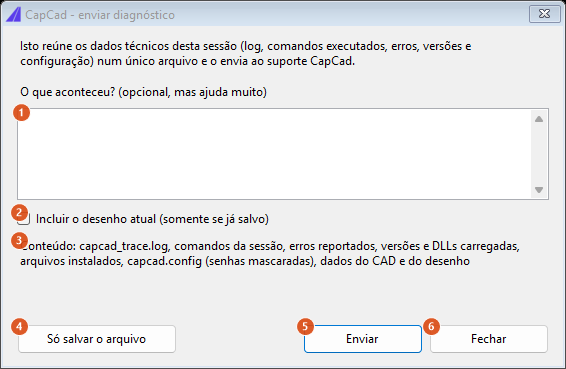
The diagnostics window. The text at the top explains what will be sent. This capture is of a Portuguese session — the numbering is the same in both editions, and the table gives the English captions.
| # | Control | What it does |
|---|---|---|
| 1 | What happened? (optional, but it helps a lot) | The free-text account. It is optional, but it is the one part automatic collection cannot produce: "it hangs when I click Insert on the second sign" is what turns a bundle of logs into a reproducible problem. |
| 2 | Include the current drawing (only if already saved) | Unticked by default. Ticked, it attaches the dwg. A drawing not yet saved is simply not attached — the command never saves for you. |
| 3 | Contents | Read-only: lists what goes into the package — capcad_trace.log, the session's commands, reported errors, versions and loaded DLLs, installed files, capcad.config (with passwords masked) and the CAD and drawing data. |
| 4 | Just save the file | Builds the package and stops there, showing where it landed and offering to open the folder. |
| 5 | Send | Builds and sends. On success it shows the reference — the code to quote when you get in touch — and closes the window. If the send fails, the file stays saved and the window offers to open the folder so you can e-mail it. |
| 6 | Close | Closes without doing anything. |
While the package is being built the controls are disabled and the footer shows progress.
Remembered between sessions
Only the group manager's three On click boxes — Zoom, Select and Isolate — which are written to the preferences when the window closes and restored the next time it opens. Since they have no effect in this version, that changes no behaviour.
The manager's explanatory box has a do-not-show-again option, and that choice is stored too.
Notes
SSandSIare the same command. Both shortcuts callCAPCAD_SELECT_BY_HANDLE.- The manager's On click boxes have no effect in this version. They are saved and restored, but clicking an item in the list only copies the identifier into the Id field; to act, use the Selecionar, Zoom and Isolar buttons.
- Renaming a group changes its identifier. Anyone who noted the old identifier down — in a spreadsheet, say — will no longer find it.
- "Eliminar group(s)" erases all the XData, not just the group's. The entities stay in the drawing but lose any other extended data they carry. The same goes for
CAPCAD_XDATA_CLEAN. CAPCAD_XDATA_CLEANis not selective. It sweeps every application registered in the drawing, including other programs'. Apply it to a narrow selection.- Leaving the manager unisolates the drawing. Closing the window gives visibility back to everything it isolated — including when you close it by accident in the middle of a check.
- The diagnostics command exists on AutoCAD only in this version. On the other CADs, use
CAPCAD_SYSTEM_INFOand send the text to support. CAPCAD_DIAGNOSEhas no ribbon button. Type the command name.