| Commands | CAPCAD_ACCOUNT, CAPCAD_ABOUT, CAPCAD_UPDATE, CAPCAD_FORCE_UPDATE, CAPCAD_RESET |
| Ribbon | CapCad tab › CapCad panel › System split button › CapCad Account, About CapCad, Check Update, Repair installation..., Reset CapCad |
| Category | Operational |
| Forms | CapcadLicenseForm (modal, two tabs) and AboutForm (modal); CapcadLicenseAdminForm is opened from the first |
| Hosts | AutoCAD, BricsCAD, GstarCAD, ZWCAD, ARES Commander |
| Licence | Free — CAPCAD_ACCOUNT, CAPCAD_UPDATE and CAPCAD_FORCE_UPDATE run without an active licence (otherwise you could neither sign in nor repair the installation) |
The licence lives in the account, not in the PC — and you move it yourself. No licence file to keep, no support ticket to change computer.
- Sign in by email. Type your email, get a code, paste it in the form and you are in. There is no password to forget.
- Releasing is one button. New laptop? Disconect license frees the seat straight away, and an administrator can do the same remotely.
- Company accounts with a pool of seats. The administrator sees every linked PC, unlinks one, or links a remote PC by code — nobody has to touch a colleague's computer.
- Automatic updates, with a manual check when you want one. Check Update downloads only what changed; Repair installation re-downloads everything, for when a file has gone bad.
- Version and program folder in one click. It is the first thing support asks for, and it is in the About window.
- Reset without risk. Reset CapCad clears the session state without touching the drawing, the licence or your preferences.
What it does
These five commands look after the program, not the drawing. None of them creates or changes entities.
CAPCAD_ACCOUNTopens the CapCad Account & License Manager window: sign in, validate the code, start a trial, buy, release this PC's licence and — on company accounts — administer the group's seats. It also has a Tools tab with unload, reset and uninstall.CAPCAD_ABOUTopens the About window: the installed version, the button that opens the program folder, and the uninstall and clean-temporary-files links.CAPCAD_UPDATE(Check Update) compares the local installation with the server and downloads only the files that differ.CAPCAD_FORCE_UPDATE(Repair installation...) asks for confirmation and re-downloads every file, even the ones that look identical.CAPCAD_RESET(Reset CapCad) discards the state CapCad keeps in the session, so the next command re-initialises everything.
The licence is resolved against the server, so CapCad needs internet access. A corporate firewall blocking the CAD is the most common cause of commands that "do nothing" — see the Troubleshooting guide.
Workflow
First sign-in
- Run
CAPCAD_ACCOUNT. The header shows no user logged in red. - Type your email in User (email or group): (3). As soon as the text is a valid email, the send button (4) is enabled and reads Send verification code to email.
- Click Send verification code to email (4). The server creates the user if it is new and sends the code; the message reminds you to check the spam folder too.
- Paste the code into License Key: (6) and click Verify code (7). On success the window closes on its own and the session is signed in.
- If you have no licence yet, CapCad stays on the free version. Request Trial... (8) starts the evaluation period; Buy a license... (9) opens the purchase page for the region of your country profile.
Moving to another computer
- On the old PC, run
CAPCAD_ACCOUNTand click Disconect license... (11). Confirm. - On the new PC, run
CAPCAD_ACCOUNT, type the same email, ask for the code and validate it.
The user and key stored locally are deleted on release, and the seat is freed on the server.
Company account (group)
When the User field holds a group instead of an email, the send-code button is disabled (groups do not receive email codes) and the caption changes to say so. In that case:
- Get remote activation code (Claim code) (12) generates this PC's code and copies it to the clipboard; send it to your administrator. The code is reusable: the administrator can keep a list of the team's PC codes.
- Licenses management... (13) asks for the group's license key and opens the seat administration panel.
The CapCad Account form
The numbers are the same in every capture on this page.
About the captures. The screenshots are from a Portuguese session, because they are the numbered figures shared with the Portuguese edition. The layout and the control numbers are identical in English; every control below is quoted as the English build shows it.
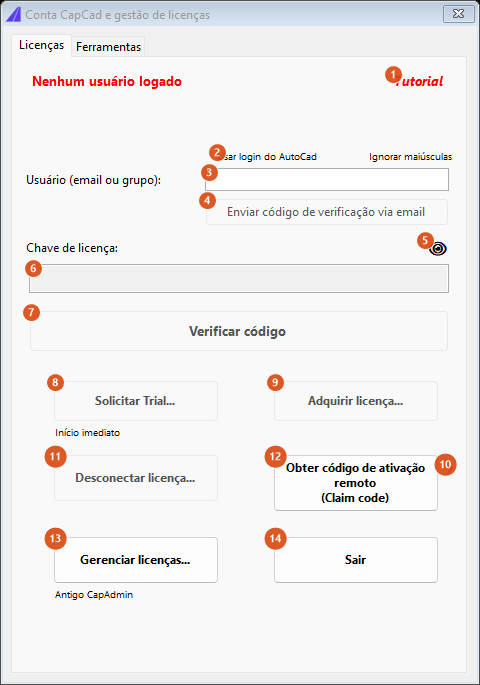
Licenses tab, signed out: the header in red, the user field free, and the trial, buy and release buttons disabled.
Licenses tab
The header is not a control: it is the status label, red when no user is signed in, orange when the user is signed in on the free version, and blue when there is a full licence. Below it, the expiry line is empty when there is no licence, shows the date and the days left when there is, and reads Perpetual license when the term is beyond 2000 days. At five days or less, CapCad warns once (the mark is stored in the preferences).
| # | Control | What it does |
|---|---|---|
| 1 | Tutorial | Opens the CapCad account introduction video in the browser. |
| 2 | Use AutoCad Login | Copies the CAD's online login name (the LOGINNAME variable) into the user field (3). If the CAD returns nothing, the field is left as it is. |
| 3 | User (email or group): | Your email, or the company group name. As you type, the form decides what to enable: a valid email frees the key field and button 4; a valid group frees the key field but disables button 4; anything else blocks both. Once signed in the field is read-only and grey. |
| 4 | Send verification code to email | Asks the server for a binding code for the email typed and sends it. Creates the user when it does not exist yet. If the server does not answer, the window says so explicitly. |
| 5 | 👁 | Hold down to reveal the contents of the key field (6); release and it is masked again. |
| 6 | License Key: | Where you paste the code received by email (or the group's license key). Disabled while the user field holds neither a valid email nor a valid group, and tinted light blue right after a successful send. |
| 7 | Verify code | Validates the user + code pair on the server. CapCad tries the binding with every MAC address on the machine until the server accepts one. On success the session restarts, the status reloads and the window closes. Enabled only when something is typed in 6. |
| 8 | Request Trial... | Starts the evaluation period for the signed-in user. Only for email users: on a company group the window says the trial does not apply. |
| 9 | Buy a license... | Opens the site's purchase page for the region of the active country profile. |
| 10 | ? | Explains the remote activation code: send it to your administrator to enable a licence on this PC; the code can be reused. |
| 11 | Disconect license... | Unbinds the licence from this PC, freeing the seat for another user. Asks for confirmation, deletes the stored user and key, tells the server and returns the form to the signed-out state. Enabled only when a user is signed in. |
| 12 | Get remote activation code (Claim code) | Generates this PC's binding code and copies it to the clipboard. Company groups only: with an email user it says it does not apply. |
| 13 | Licenses management... | Asks for the group's license key and opens the seat administration panel. Also company-groups only. |
| 14 | Exit | Closes the window. The title bar's X does exactly the same. |
Below the buttons are two purely informational labels: Starts immediately (under the trial) and Old CapAdmin (under the licence manager; shown only in the Brazilian profile). The label Case insensitive, beside the user field, reminds you that the name does not distinguish upper from lower case.
Tools tab
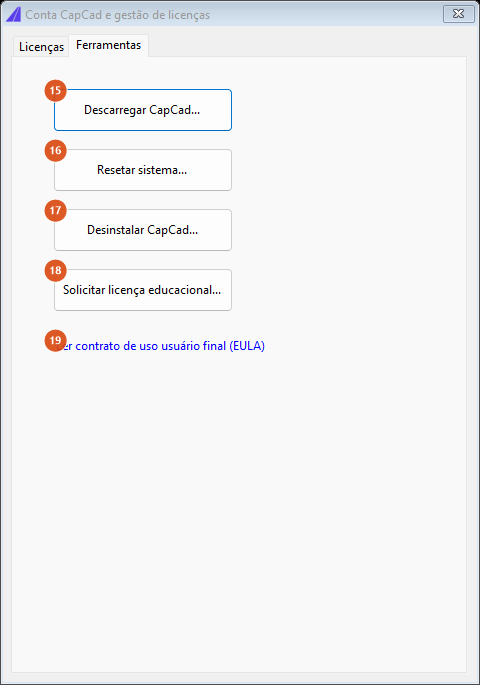
Tools tab: the four maintenance actions and the user agreement link.
| # | Control | What it does |
|---|---|---|
| 15 | Unload CapCad... | Asks for confirmation and unloads CapCad from the CAD session: the menu group is removed and the window closes. Reversible — just restart the CAD. The licence is not released. |
| 16 | System reset... | Clears the licence state held in the session. The message warns that a full reset needs a CAD restart. |
| 17 | Uninstall CapCad... | Asks for confirmation and runs the uninstaller that came with the installation. If the uninstaller is not found, it tells you to remove CapCad through Windows. |
| 18 | Request educational license... | Shows the instructions: email team@capcad.io with proof of enrolment, the institution and the course period. Valid for non-commercial use. |
| 19 | Read user agreement (EULA) | Opens the terms-of-use page in the browser. |
This tab has no Close button — Exit (14) lives on the Licenses tab. Use the title bar's X or go back to the first tab.
Licenses management (company groups)
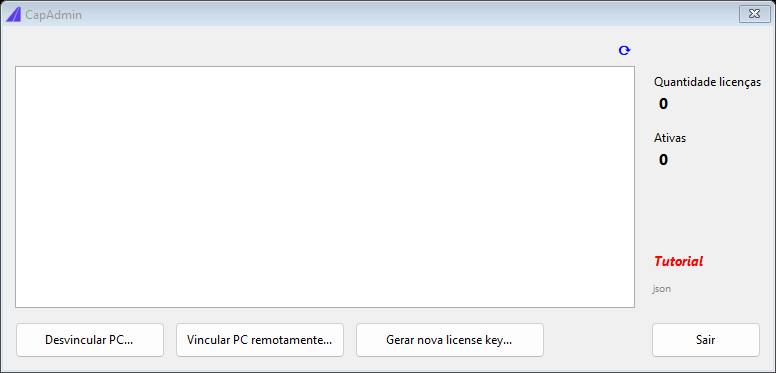
The seat panel, opened by button 13. The list arrives empty until the server answers.
The panel lists every seat in the group, with the PC bound to each one, the licence type, the validity in days and the last access, and counts how many seats are free. Its controls are not part of this page's numbering, because the window is secondary:
- ⟳ reloads the list from the server.
- Unlink PC... frees the selected seat.
- Link PC remotely... takes the claim code a colleague generated with button 12 and binds their machine without anyone sitting at it.
- Generate new license key... explains how to request a new key by email; the license key only binds a PC to the pool and is not stored on any machine.
- Tutorial opens the administration video; json shows the server's raw answer, which is useful in support.
- Exit only hides the window.
The About window
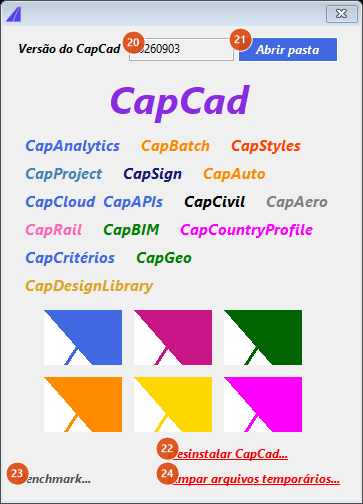
The About window: version, program folder, the module showcase and the three maintenance actions.
| # | Control | What it does |
|---|---|---|
| 20 | CapCad version | Read-only. This is the program's build stamp, not the file date — copying or downloading the program files does not change the number. Hover for a tooltip with the exact build date and time. |
| 21 | Open folder | Opens the CapCad installation folder in Explorer. This is the answer to "where is CapCad installed?". |
| 22 | Uninstall CapCad... | Shows the route: Windows › Apps › Installed apps (or Add/Remove programs). Unlike button 17, this one only tells you; it does not run the uninstaller. |
| 23 | Benchmark... | Not available in this version. |
| 24 | Clean temporary files... | Deletes the files in the project's proposed-signs folder (when it is set and valid) or, failing that, in the project's exports folder, and reports how many files were removed. Locked or read-only files are skipped. |
The body of the window is a showcase of the CapCad modules — CapAnalytics, CapBatch, CapStyles, CapProject, CapSign, CapAuto, CapCloud & CapAPIs, CapCivil, CapAero, CapRail, CapBIM, CapCountryProfile, CapCriteria, CapGeo and CapDesignLibrary.
Keeping the installation
CapCad updates itself when the CAD opens. The two commands below force the check and repair.
Check Update — CAPCAD_UPDATE
Compares the installation with the server and downloads only the files that differ. If a file in use stays locked, the update carries on and skips it.
At the end the command says one of three things: that CapCad was already on the latest version; that it was updated; or that it was updated and the CAD must be restarted. That last case is normal: files in use cannot be replaced while the CAD is running, so the update is applied the next time the CAD opens.
If the command cannot work out the CapCad folder, it says so and asks whether the first-install .bat file was ever run.
Repair installation — CAPCAD_FORCE_UPDATE
The same process, but re-downloading every file, including the ones that are the same size as the server's. This is what fixes a corrupted component file. On finishing it confirms that CapCad was repaired successfully.
Reset CapCad — CAPCAD_RESET
Discards the state CapCad keeps in the session: the last coordinate system used, the language resolved from the profile, and the translation of forms that are already open. Writes capcad was reset on the command line.
The reset does not touch the drawing, your preferences, the project or the licence. It is the recommended first step when something behaves oddly; if it does not help, restarting the CAD gives the full effect.
Remembered between sessions
Stored with the installation:
- the signed-in user and the validated key, deleted when you release the licence;
- the mark that the 5-day expiry warning has already been shown.
None of it is per drawing: it applies to your Windows user on that installation. Two users on the same machine, or two different CADs, each have their own.
Notes
- Every command run is logged on the server, with the command name. That is what lets support reconstruct what happened before an error.
- The country profile is a preference separate from the licence: changing country neither revalidates nor invalidates anything.
- The installation folder also appears, together with the CapId and other machine data, in
CAPCAD_SYSTEM_INFO; to send a full diagnostic package to support useCAPCAD_DIAGNOSE.
See also
- Preferences and working environment — interface language, status bar, command shortcuts and the suggested CAD settings.
- Help, learning and community — online manual, command library, video channel and feedback.
- Troubleshooting guide — firewall, missing ribbon, damaged dwg.