| Command | CAPCAD_CAPDATA |
| Shortcuts | none |
| Ribbon | CapCad tab › CAD Utilities panel › Tools split button › XData Manager |
| Category | Manage: Tools |
| Form | CAD XData Manager, modeless |
| Hosts | AutoCAD, BricsCAD, GstarCAD, ZWCAD and ARES Commander |
| Also opened by | the XData button of Vertical Manage |
Tag entities with information of your own, with no block, no attribute and no parallel table. You invent the property, give it a value, and it is stored in the geometry itself — including on lines, polylines and hatches, which have no attributes at all.
- Select by the data, not by the drawing. One click gathers everything in the whole drawing that carries
paint_material = Thermoplastic, however scattered it is. - The selection you already made is used. The command works on the current selection; if there is none, it asks for one and hides itself while you select.
- Refine before acting. The layer filter, with wildcards, cuts a big selection down to what matters before attaching or hiding.
- Hide to check. Make what is already settled disappear, work on the rest, show everything again at the end.
- It sees what is already there. The values pane shows what the selection carries and the report details entity by entity, with handle, type and every piece of data.
- It works on all five CADs, because XData is a feature of the DWG format itself.
What it does
XData (extended data) is a space the DWG format reserves, on every entity, for applications to keep information of their own. CapCad uses a simple convention: one text value per registered application, where the application name is the property and the text is the value. So saying that a polyline has pintura_material = Termoplástico means registering the application pintura_material in the drawing and storing the text Termoplástico in it, on that entity.
CAPCAD_CAPDATA is the window that makes this workable: attach, find, filter, hide and check. The form is modeless — it stays open while you work in the drawing, and it re-reads the selection every time you click back onto it.
It is a different mechanism from property sets, which keep a structured vocabulary, defined by the style, in a record of their own on the entity. The XData here is free: the property is whatever you type, and there is no prior definition at all.
Workflow
- Select in the drawing the entities that are to receive the data — or leave it for later.
- Run
CAPCAD_CAPDATA. The Property list (1) already holds every XData property in use in the drawing, except the CAD's own. - Choose or type the property and the Value (2). A few known names bring their usual values ready in the list.
- Attach property/value to selection (4). If nothing is selected, the form hides itself, asks for the selection and comes back.
- Check in the Values: pane (12) and in the Report (13).
For the reverse trip — finding what is already tagged — fill in the property, leave the value blank or fill it in, and use Select all property and value (5).
The form
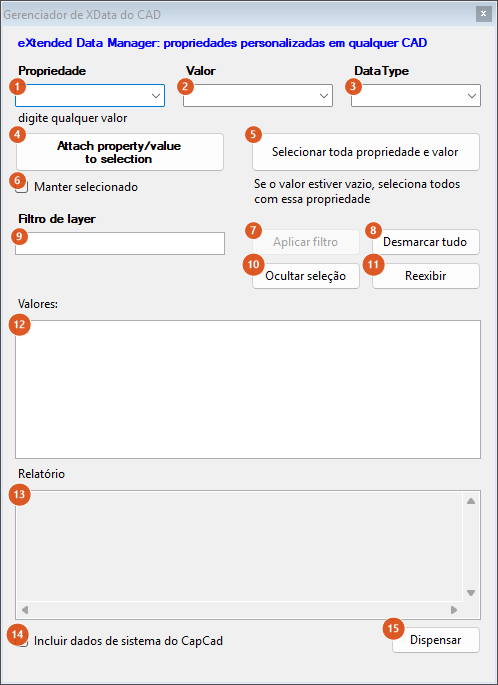
The capture is of a Portuguese session; the numbering is the same in both editions, and the tables give the English captions. The form is modeless: the values and report panes are rebuilt on every action and whenever the window takes the focus again.
Property and value
| # | Control | What it does |
|---|---|---|
| 1 | Property | The property's name. The list is built when the window opens, walking model space and collecting every XData application in use, minus the CAD's own ACAD. The field is editable: type a new name and it comes into existence |
| 2 | Value | The text to store. Also editable. Choosing one of CapCad's known properties in (1) fills this list with the usual values. The presets carry the original Portuguese names and values: pintura_material (paint material) offers Tinta acrílica, Termoplástico and Plástico a frio — acrylic paint, thermoplastic, cold-applied plastic; pintura_largura (line width), 0.10, 0.15 and 0.20; pintura_espessura (paint thickness), 0.5, 0.6 and 1.5; tacha_refletividade (road-stud reflectivity), Monodirecional and Bidirecional; película (sheeting), I, II, III and X. They are suggestions only — nothing stops you typing your own vocabulary |
| 3 | DataType | Indicative. No effect in this version: the value is always stored as text. It only fills itself in, with pintura_horizontal, when the property chosen is pintura_material |
The text type in any value, below the three fields, is the reminder that neither the property nor the value has to come from the lists.
Attach and select
| # | Control | What it does |
|---|---|---|
| 4 | Attach property/value to selection | Stores the property (1) with the value (2) on every entity in the selection. It works on the current selection; if there is none, the form hides itself, asks for the selection and reappears. It needs both fields filled in, otherwise it answers Fill in the property and value first. in the status bar. At the end it reports how many entities received the data |
| 5 | Select all property and value | Walks model space and selects everything that has the property (1) with the value (2), matched exactly. With the value blank, it selects everything that has that property with any non-empty value, skipping the entities CapCad has flagged for exclusion. It needs the property filled in. It answers None found. when it finds nothing |
| 6 | Keep selected | After attaching, keeps the selection in the drawing and refreshes the panes. Unticked, the selection is cleared after the attach |
The text beside button (5) sums up the blank-value rule.
Filter, hide and unhide
| # | Control | What it does |
|---|---|---|
| 9 | Layer Filter | A layer-name pattern, with wildcards: * (any run), ? (any single character), # (a digit) and sets in square brackets. Case-insensitive |
| 7 | Apply filter | Cuts the current selection down to the entities whose layer matches (9), and reports how many were kept out of how many there were. It stays disabled while (9) is empty. It selects nothing on its own: it is a narrowing, not a search |
| 8 | Deselect All | Clears the selection |
| 10 | Hide selection | Makes the selected entities invisible. It is the entity's own visibility property, and it is stored in the drawing: saving and reopening keeps everything hidden until you unhide |
| 11 | Unhide | Gives visibility back to every hidden entity of model space, and reports how many came back |
Check
| # | Control | What it does |
|---|---|---|
| 12 | Values: | The property = value pairs present in the selection, in alphabetical order. It is a merged list: when two entities have the same property with different values, only the value of the first one found appears. It is for knowing which data the selection carries, not for comparing entity with entity — that is what the report is for |
| 13 | Report | One line per entity in the selection, in the format n - handle - type - { "property": "value", … }, with all the data of each. Read-only, with scroll bars both ways; the header line reads handle - objName - XData |
| 14 | Include CapCad System Data | Unticked (the default), the panes hide the internal data: everything starting with capcad or capgroup, and ACAD. Ticked, it shows everything. Toggling it rebuilds both panes at once |
| 15 | Dismiss | Closes the window. Nothing is undone: whatever was attached or hidden stays |
The line below the buttons is the status bar, where every action leaves its result.
Remembered between sessions
Nothing. The form always opens blank, and the property list (1) is rebuilt on every opening from what exists in the drawing. The attached data, on the other hand, lives on the entities and travels with them on copy, paste and WBLOCK.
Notes
- One value per property and per entity. Attaching the same property again replaces the previous value; there is no history. The other properties on the entity are untouched.
- The command only sees model space. The property list, the search in (5) and Unhide (11) walk model space alone. Data attached to entities in a paper-space layout exists in the file, but does not appear in the list and is not found by the search — only by the report, if you select them by hand.
- Hiding is not freezing. The hidden entity stays on its layer and disappears from the screen and from the plot. It is a mark on the entity, not a layer setting, and so it does not show in the CAD's layer manager.
- With Keep selected unticked, the panes are stale for a moment after an attach: they still show the old selection until you click back onto the window, which triggers the re-read.
- Negation in character sets does not work in the filter (9). A pattern like
[!A-Z]*(a negated set, "not starting with a letter") is treated literally. Use the*,?and#wildcards. - To erase the XData of an entity, use
CAPCAD_XDATA_CLEAN— see Entities, groups and diagnostics. It erases all the extended data of the entity, not only what you attached here.